Schedule Management Commands
Commands for managing your schedule, viewing upcoming events, and controlling the reminder service.
AI agent plugins
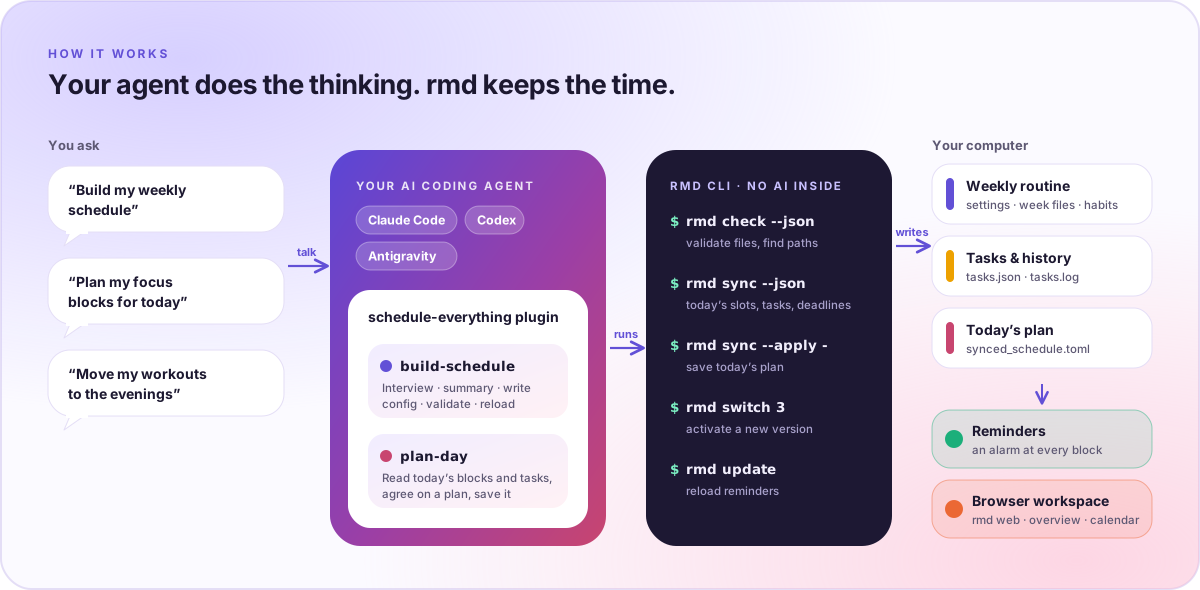
Building a weekly routine and planning a day happen in your own coding agent
through the schedule-everything plugin for Claude Code, OpenAI Codex, or
Google Antigravity. The plugin works through the local rmd CLI. The agent
sends what it reads to its own model provider; Schedule Everything itself makes
no AI calls. The full guide is AI agent plugins.
Install
- Claude Code
- Codex
- Antigravity
claude plugin marketplace add AutoPhd-org/schedule-everything
claude plugin install schedule-everything@schedule-everything
Inside a Claude Code session, use the slash commands instead:
/plugin marketplace add AutoPhd-org/schedule-everything
/plugin install schedule-everything@schedule-everything
codex plugin marketplace add AutoPhd-org/schedule-everything
codex plugin add schedule-everything@schedule-everything
Codex reads the plugin from the repository marketplace catalog, .agents/plugins/marketplace.json.
git clone https://github.com/AutoPhd-org/schedule-everything.git
agy plugin install ./schedule-everything/plugins/schedule-everything
Antigravity installs the plugin from a local clone of the repository.
Then ask your agent things like "Build my weekly schedule", "Plan my focus blocks for today", or "Move my workouts to the evenings".
build-schedule
Builds or changes your weekly routine.
- Interviews you profile-first, reading
profile.mdwhen it exists. - Proposes a plain-language summary and waits for your confirmation before writing any file.
- Writes
settings.toml,odd_weeks.toml,even_weeks.toml,habits.toml, andprofile.md, validates them withrmd check, then reloads reminders withrmd update. - For changes to an existing schedule, copies the active config to a new
user_config_<n>version, edits the copy, validates it withrmd check --dir, and activates it withrmd switch <n>. Older versions remain for rollback. - Applies evidence-informed defaults when you leave details open: at least 7 hours of sleep opportunity, 150–300 minutes of moderate activity per week with strength work on 2 or more days, movement breaks, demanding work in your best-focus windows, daylight early in the day, and no stimulating late-night work. These are heuristics, not medical advice; your own constraints win.
plan-day
Fills today's focus blocks.
- Reads today's context with
rmd sync --json. - Assigns open tasks to today's focus blocks and confirms the plan with you.
- Saves the plan with
rmd sync --apply. See sync.
switch
Activate a specific versioned config snapshot and reload the background service.
Syntax
rmd switch CONFIG_ID
What it does
- Validates that
CONFIG_IDexists asuser_config_<id>under your config root. - Updates
.active_configso the selected snapshot becomes live. - Restarts the installer-managed reminder service when its restart helper is available.
- Prints the valid ids when you request an invalid one.
Examples
# Switch back to the first generated schedule
rmd switch 0

# Activate the third accepted revision
rmd switch 2
update
Reload the schedule configuration files and restart the background service. If
the active config directory contains .git, rmd update runs git pull --rebase first. Otherwise it skips the git step and reloads the local files
as-is.
Syntax
rmd update
What it does
- Pulls the latest config changes when your config directory is git-managed.
- Restarts the installer-managed reminder service when its restart helper is available.
- Falls back to a local-only reload flow for configs that are not git-managed, such as those written by an AI agent or by hand.
Examples
# Basic update
rmd update
status
Show upcoming events and current service status. When today has a saved plan (see sync), pomodoro and potato blocks show both the block type and the planned task title.
Syntax
rmd status [OPTIONS]
Options
| Option | Description |
|---|---|
-v, --verbose | Show detailed schedule for today |
Examples
# Show current status and next events
rmd status

# Show detailed today's schedule
rmd status -v
sync
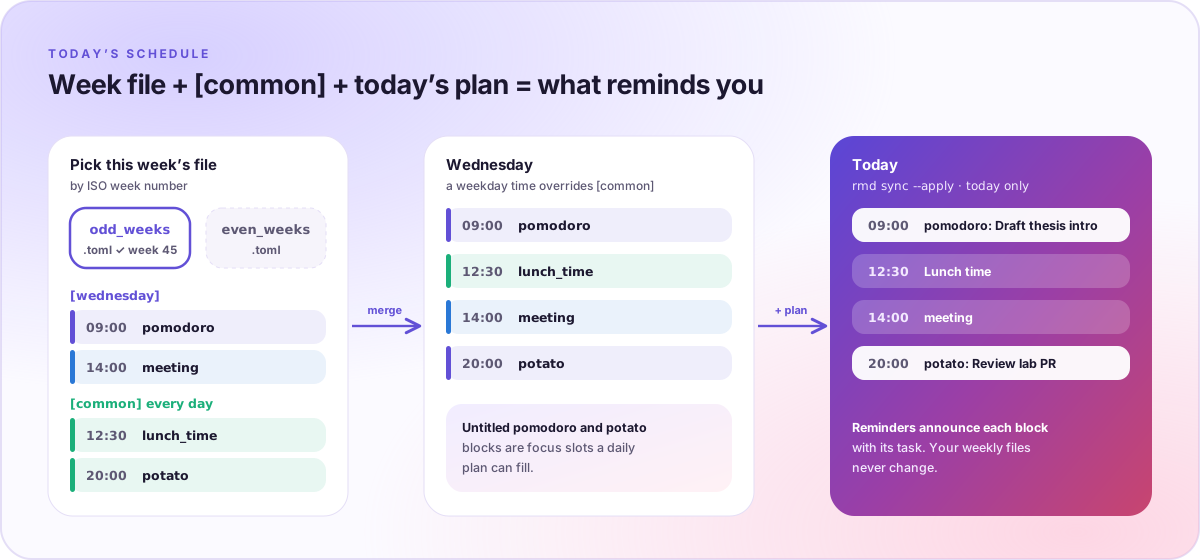
Show, save, or clear today's plan for focus blocks (untitled pomodoro and
potato blocks). rmd sync makes no AI calls: the
plan-day skill in your AI agent reads --json, drafts the plan
with you, and saves it with --apply.
Syntax
rmd sync [--json | --apply FILE | --clear]
Options
| Option | Description |
|---|---|
| (none) | Show today's focus blocks and the planned task for each, or a hint to plan with your AI agent |
--json | Print today's context for agents as JSON |
--apply FILE | Save a plan for today from a JSON file; use - to read standard input |
--clear | Remove today's plan |
What it does
--jsonprintsdate,weekday,parity,mode,skipped,slots(each withtime,block,minutes, and plannedtitle), the day'sevents, opentasks(priority, type, postponement, and procrastination), upcomingdeadlines, and the currentplan.--applyreads a plan like the one below. Keys must be today's slot times; a partial plan is fine. Titles can be up to 120 characters. Applying replaces any earlier plan for today.- The plan is stored as the overlay
synced_schedule.tomlin the config root. Reminders andrmd statuspick it up automatically, without a restart. - A plan changes only today;
odd_weeks.tomlandeven_weeks.tomlare never modified. - Bare
rmd syncand--applyare refused in P mode, and--applyis refused on skip days.--jsonand--clearwork in both modes.
{
  "date": "2026-11-04",
  "assignments": {
    "09:00": "Draft thesis intro",
    "14:00": "Review lab PR"
  }
}
Examples
# Show today's focus blocks and their planned tasks
rmd sync

# Print today's context for an AI agent
rmd sync --json

# Save a plan from a file, or from standard input
rmd sync --apply plan.json
rmd sync --apply - < plan.json

# Remove today's plan
rmd sync --clear
check
Validate a config directory: the active one by default, or the one given with
--dir.
Syntax
rmd check [--dir DIR] [--json]
Options
| Option | Description |
|---|---|
--dir DIR | Config directory to check instead of the active one |
--json | Print the result and config paths as JSON |
What it does
- Requires
settings.toml,odd_weeks.toml, andeven_weeks.toml. - Checks TOML and JSON syntax and required tables:
settings.tomlneeds[settings],[time_blocks], and[time_points];habits.tomlneeds[habits];ddl.jsonmust be a list of event/deadline objects. - Checks the week files against
settings.toml. An inline{ block = "...", title = "..." }whoseblockis not a[time_blocks]name is an error, because reminders ignore it. - Reports warnings that do not make the directory invalid: a missing
[tasks]or[paths]table (built-in defaults apply), and a plain label that is not a[time_blocks]or[time_points]name (it is shown as a plain reminder message with no duration, which is usually a typo). - Prints the config root, the checked directory, its files, errors, and warnings. Exits with code 1 when the directory is invalid.
--jsonprintsconfigRoot,activeId,activeConfigDir,configIds,nextConfigId,nextConfigDir,directory,files(each withpathandexists),valid,errors, andwarnings.
Examples
# Validate the active config directory
rmd check

# Validate a new version before activating it
rmd check --dir ~/.schedule_management/config/user_config_2
rmd switch 2

# Machine-readable result for scripts and AI agents
rmd check --json
view
Generate a visual representation of your schedule as a PDF document. This command creates a multi-page PDF combining your Odd and Even week schedules and opens it in your default PDF viewer (xdg-open on Linux).
Syntax
rmd view
Examples
# Generate and open schedule PDF visualization
rmd view
edit
Open the TOML schedule configuration files directly in your default system editor.
Syntax
rmd edit [FILE]
Options
FILE choices: settings, odd, even, deadlines, habits (default is settings if omitted).
Examples
# Edit settings (default)
rmd edit

# Edit odd weeks schedule
rmd edit odd

# Edit deadlines
rmd edit deadlines
settings
Open the interactive settings TUI editor to customize your configuration parameters with keyboard navigation.
Syntax
rmd settings
What it does
- Launches a keyboard-driven TUI screen inside the terminal.
- Allows navigating sections and configuration keys using
Up/Down, withEnterto open a section or edit a value. - Allows editing numeric or text values inline, toggling boolean values with
Space, and picking choices/days from lists. - Supports adding new custom keys under configurable sections.
- Shows one shortcut per action in the footer, with local editing actions above navigation and save/quit controls.
- Uses
Escto return from a section or cancel the current editor. At the section list,Escstays in settings; useqto quit. - Prompts when quitting with unsaved changes:
ssaves and quits,ddiscards and quits, andEsckeeps editing. Repeatingqdoes not discard changes. - Shows a modified marker for unsaved settings changes, including on the section list.
Ctrl+Calso opens the quit confirmation when changes are unsaved. - Persists changes back to your active
settings.tomlconfiguration on save (s).
Keyboard actions
| Context | Actions |
|---|---|
| Section list | ↑ / ↓ Move · Enter Open · s Save · q Quit |
| Settings section | ↑ / ↓ Move · Enter Edit (or Space Toggle for booleans) · a Add · d Delete · Esc Back · s Save · q Quit |
| Choice picker | ↑ / ↓ Move · Enter Apply · Esc Cancel |
| Multi-select | ↑ / ↓ Move · Space Toggle · Enter Apply · Esc Cancel |
| Text/number/time editor | Enter Apply · Esc Cancel · Backspace Delete a character |
| Multi-step weekday/day editor | Enter Next on the first step, Apply on the time step · Esc Cancel the entire edit |
| New key editor | Enter Add · Esc Cancel |
| Time list | ↑ / ↓ Move · Space Edit item · a Add · d Delete · Enter Apply list · Esc Cancel list |
| Unsaved changes | s Save and quit · d Discard and quit · Esc Keep editing |
Applying a field or list updates the in-memory configuration; use s from a browsing panel to write changes to disk. In a time list, cancelling an item edit returns to the list, and cancelling a new item leaves no placeholder behind.
The old e / x quit shortcuts still work in browsing panels, and Left / Backspace remain back/cancel aliases in sections, choice pickers, and time lists. The footer displays only the primary shortcuts. Time-list controls have changed: use Space to edit and Enter to apply; Esc, Left, and Backspace now cancel the list instead of applying it.
stop
Stop the reminder-runner background service.
Syntax
rmd stop
report
Generate a weekly or monthly productivity report as a PDF document.
Syntax
rmd report TYPE [OPTIONS]
Parameters
| Parameter | Type | Description |
|---|---|---|
TYPE | string | weekly for the calendar week containing the target date, or monthly for the calendar month containing the target date |
Options
| Option | Description |
|---|---|
-d, --date | Target date in YYYY-MM-DD format (default: today) |
--days | Compatibility flag for older scripts. weekly only accepts 7; monthly does not support it. |
Examples
# Generate the weekly report for the current week
rmd report weekly

# Generate the monthly report for the current month
rmd report monthly

# Generate the weekly report for the week containing a specific date
rmd report weekly -d 2024-02-01

# Generate the monthly report for the month containing a specific date
rmd report monthly -d 2024-02-01