Browser workspace
Open Schedule Everything in your default browser:
rmd web
The server runs on your computer and reads the same local files as rmd.
Closing the launching terminal does not stop the server. After launch, you can
manage your workspace without returning to the terminal. When the schedule
files are missing or invalid, a banner offers Build a schedule with your AI
agent (which opens the Schedule page) and Edit configuration; malformed
files can be repaired in the browser.
What you can do
| Area | Operations |
|---|---|
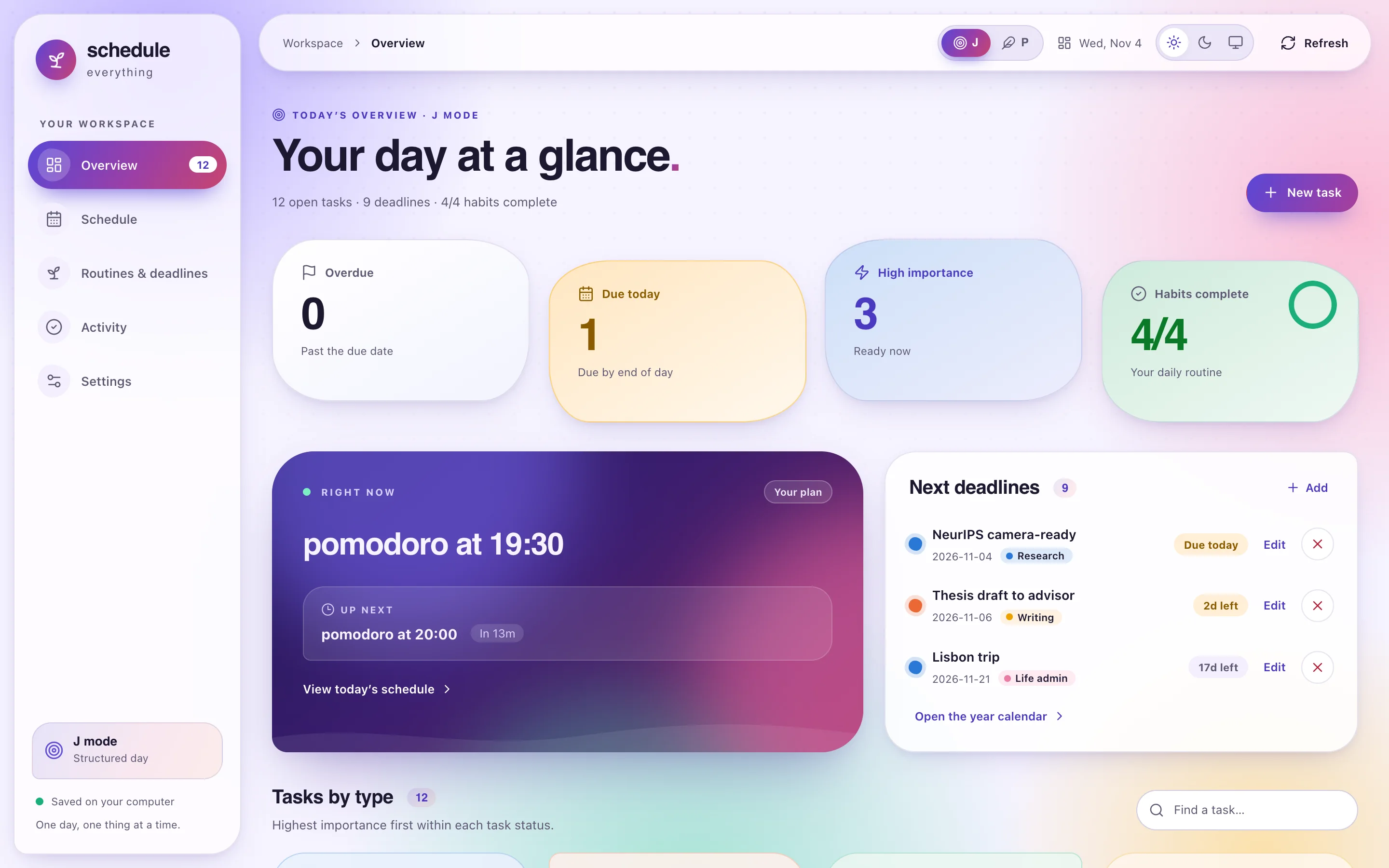
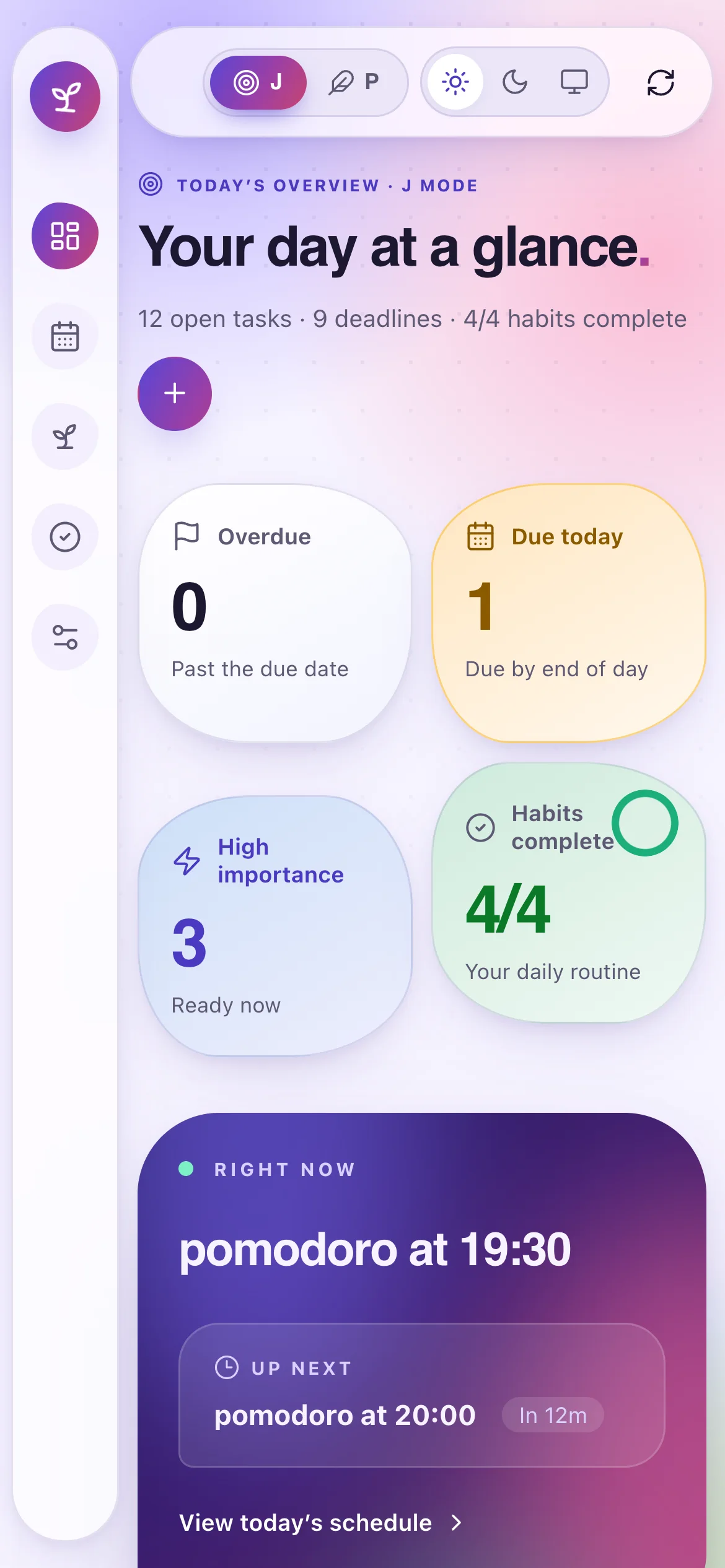
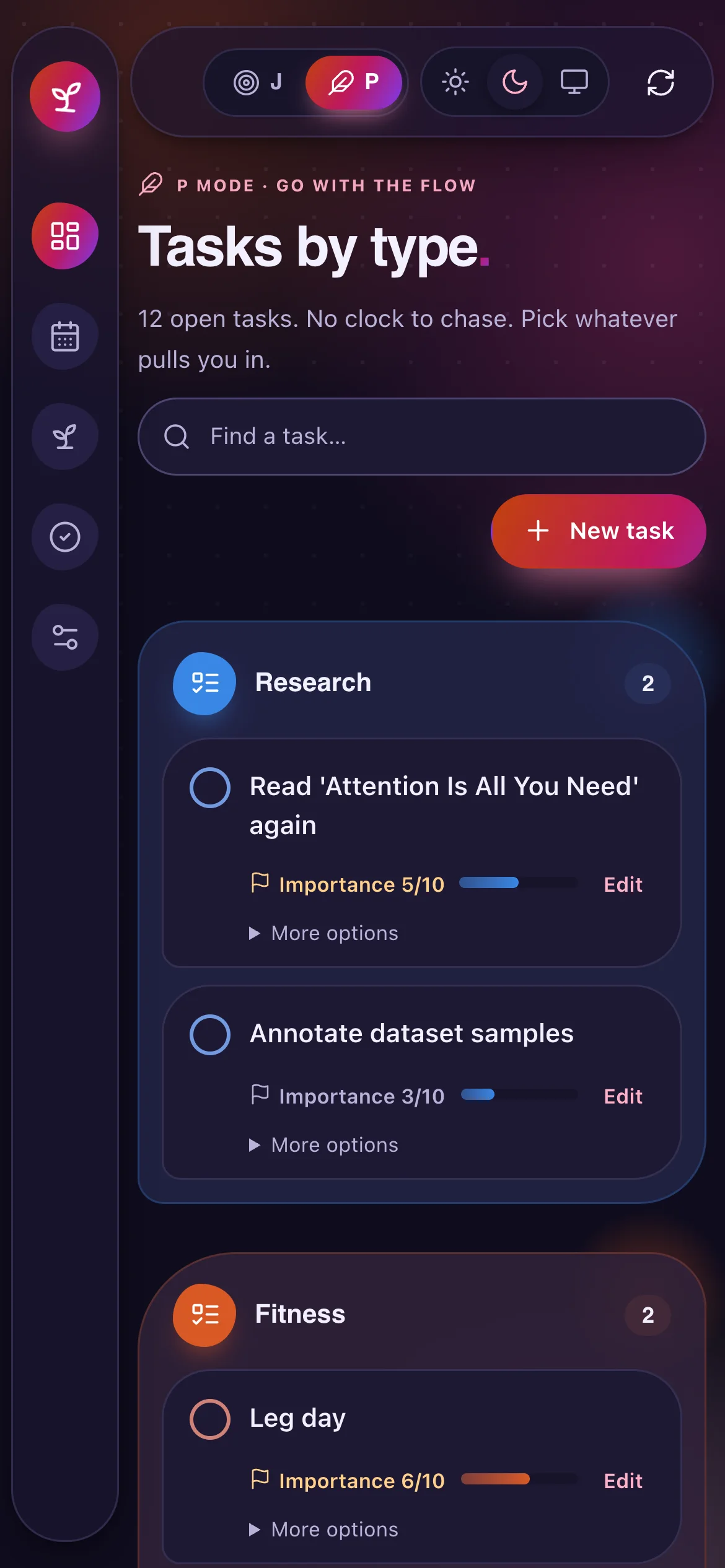
| Overview | J mode: see overdue and due-today counts, available high-importance tasks, habit progress, the current/next schedule blocks, nearest deadlines, the daily overview, and today's timeline. P mode: the tasks-by-type board, with the daily overview below it. In both modes, follow timers for today's timed tasks and for deadlines in their last 24 hours, with today's timed work as one progress bar; search all tasks grouped by type; lay the groups out compactly or spread by workload; add a task right inside its group or from New task; add, rename, or delete task types; fold the groups into summaries; set each task's progress or break it into subtasks; make a task timed; edit, complete, cancel, or drop tasks |
| Schedule | View today's timeline; see and clear today's plan; get the agent plugin install commands and example prompts; download the schedule PDF |
| Routines & deadlines | Record today's habits; plan deadlines and repeating events on an interactive year calendar (click a day to add, repeat weekly, every two weeks, or monthly, choose a marker color, drag to reschedule, and optionally show AI conference dates); add, edit, and remove deadlines with shared task types and urgency labels |
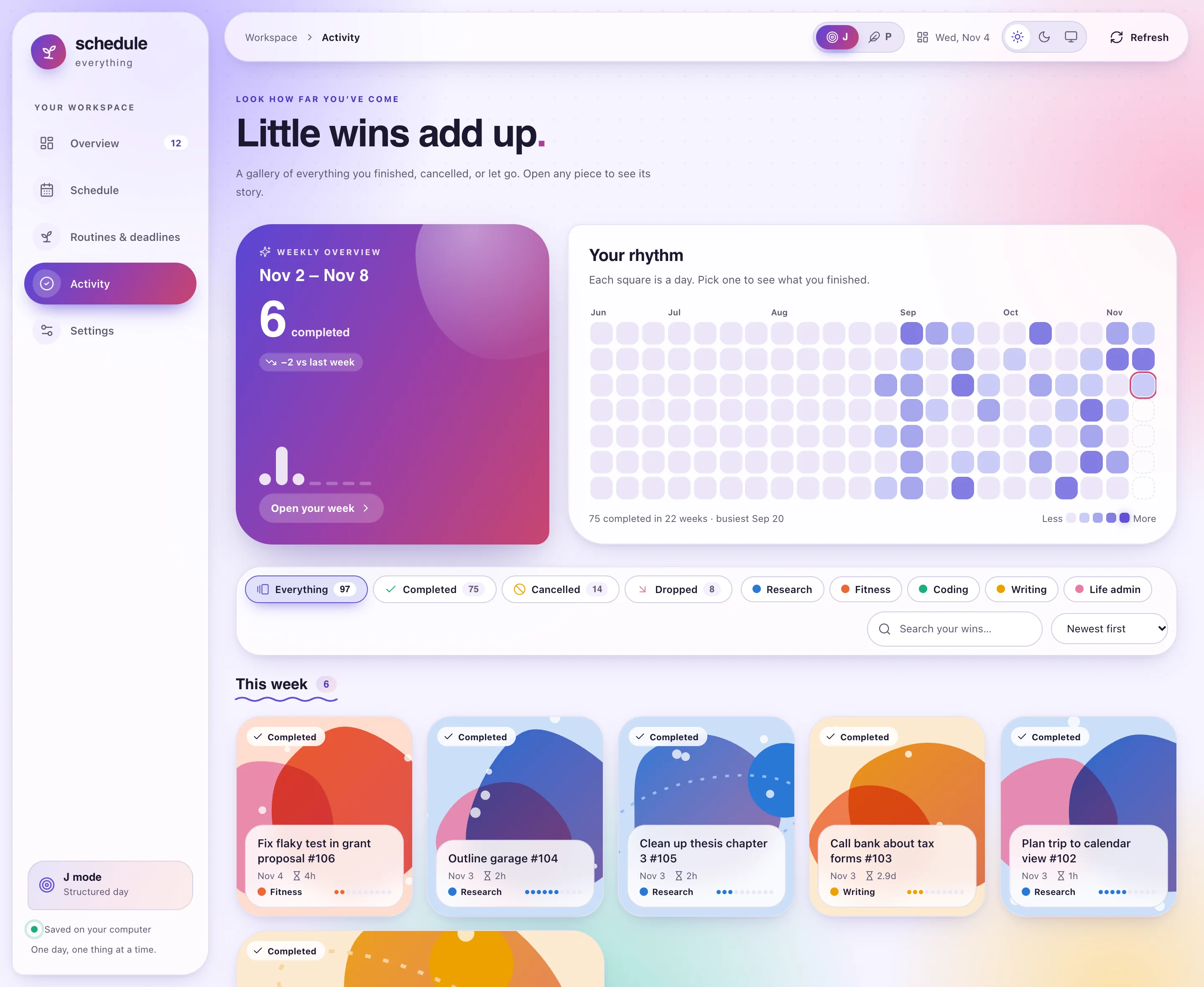
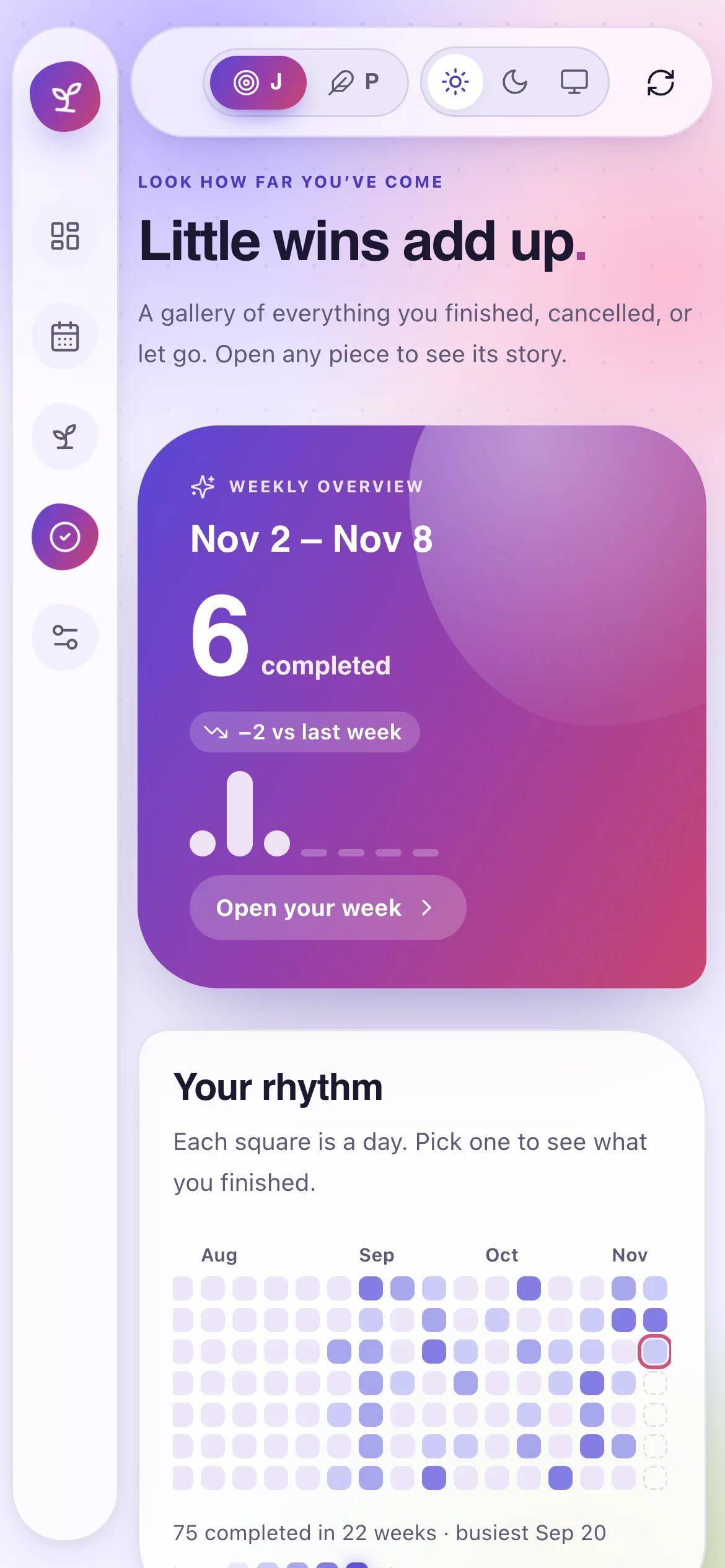
| Activity | Scroll a timeline tree of completed, cancelled, and dropped tasks, or switch to a gallery; filter, search, and use the daily rhythm grid; hover over any task for its story; open the weekly overview to compare a week with earlier weeks |
| Glossary | Look up any number the workspace shows: what it measures, how it is counted, an example, your own current value, and where to find it |
| Settings | Edit settings, odd/even week schedules, habits, deadlines, and profile; switch schedule versions and modes; reload or stop reminders; pick the interface language (English, 中文, Español, 한국어); choose the board layout, whether the theme follows your workload, where each workload level starts, and whether today's progress weighs tasks by importance |
J mode and P mode
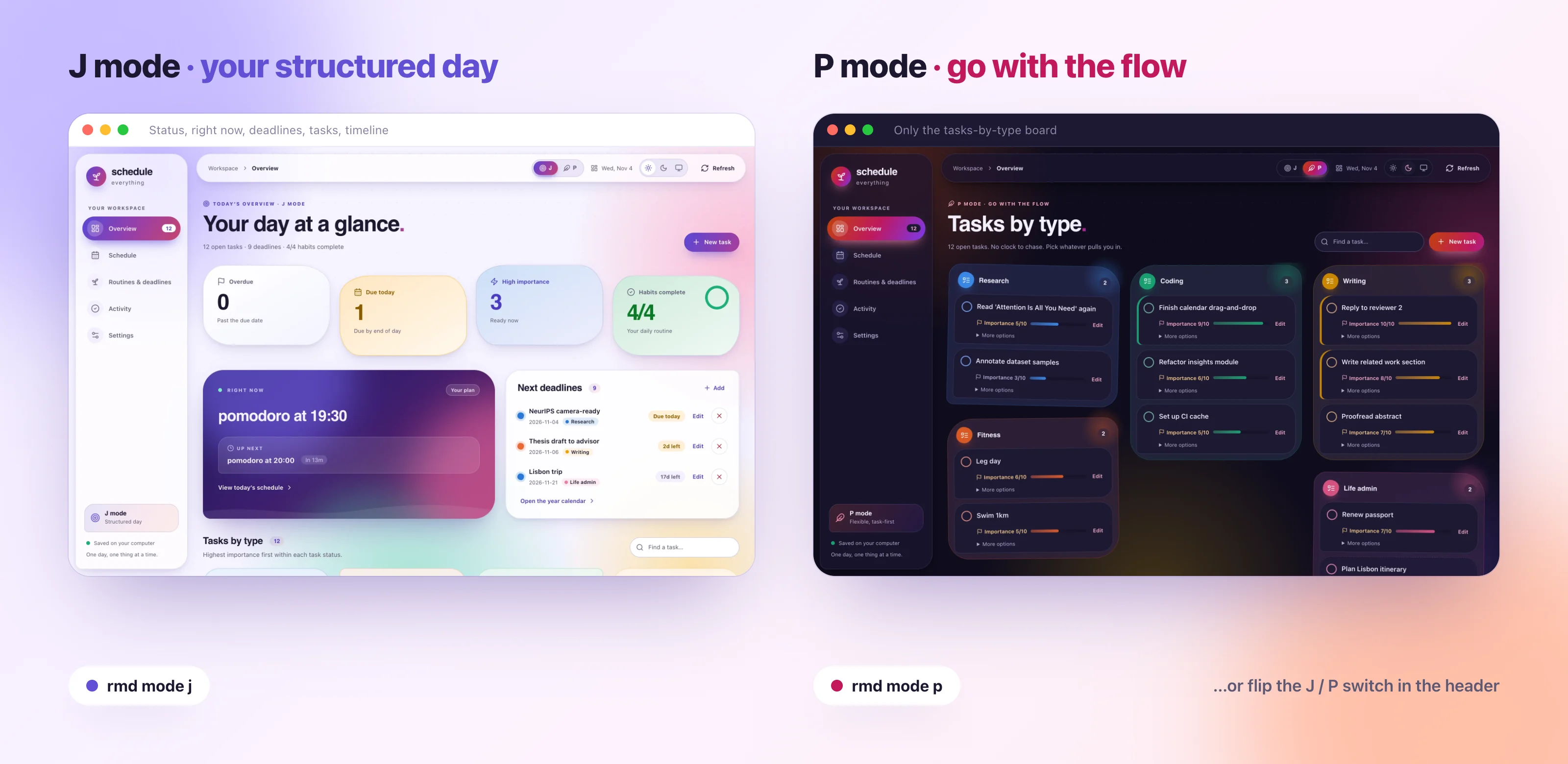
The J / P toggle in the header (or rmd mode j|p) switches modes for the
reminder service and the browser together. J mode is the structured day: the
overview shows status counts, the current and next schedule blocks, upcoming
deadlines, the task board, and today's timeline. P mode is flexible and
task-first: the overview keeps the tasks-by-type board, laid out as a loose
collage, with the daily overview below it, and the workspace uses a warmer
palette. Other pages are the same in both modes.
Year calendar
Routines & deadlines opens with a calendar for the current year. Days with deadlines are tinted with the deadline's marker color; a day with several deadlines shows a dot for each. Use the arrows to change year and Today to return.
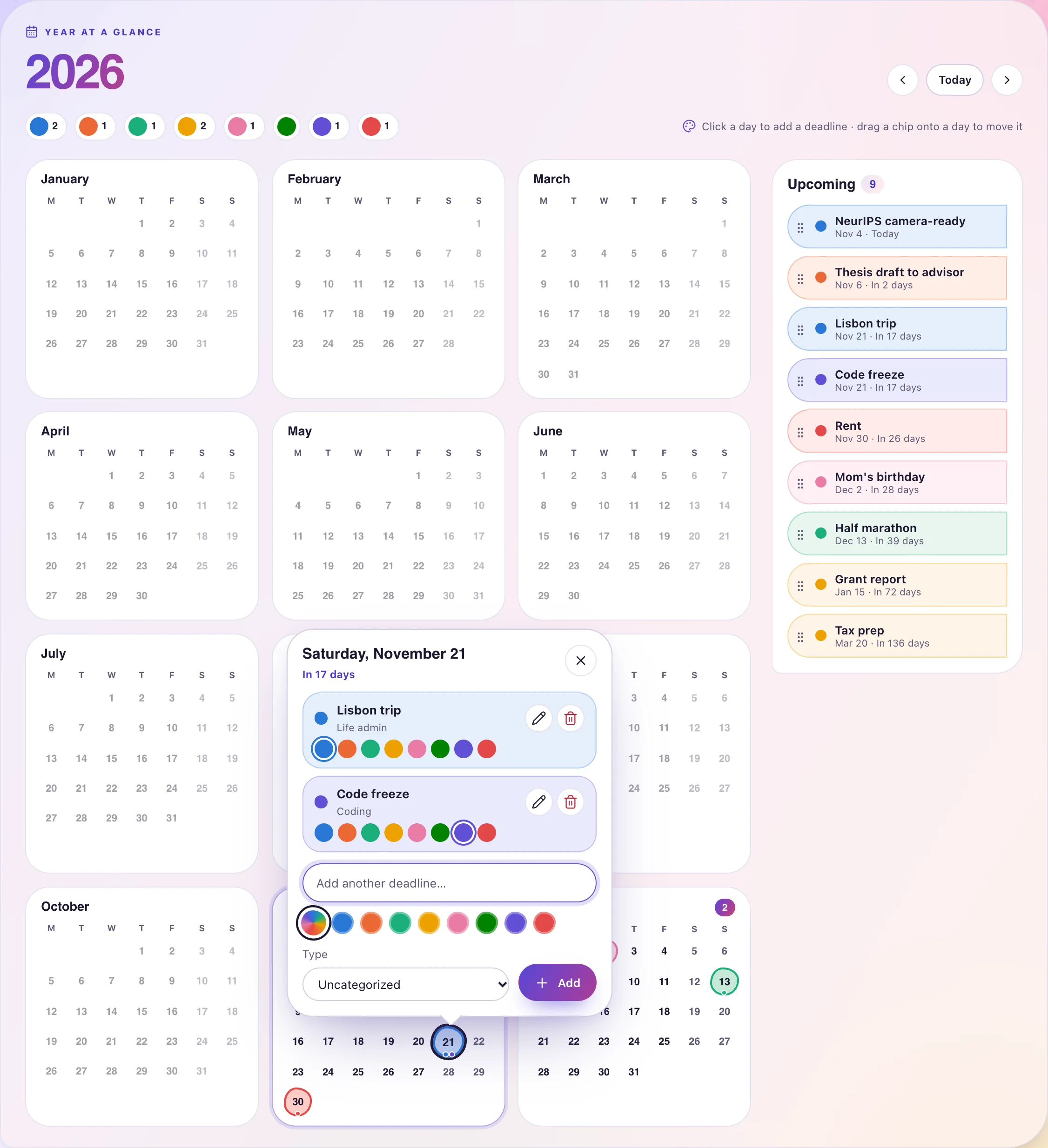
- Click a day to open its card. Name a deadline, pick a color, a type, and how it repeats, and choose Add. Past days are read-only.
- Repeat can be Weekly, Every 2 weeks, or Monthly. The calendar shows every occurrence through the end of the year you are viewing: the next one in full color, later ones lighter with a dashed ring. Upcoming, the overview, and reminders use the next occurrence, and once it has passed the deadline moves on to the following one instead of being removed. Change or stop the repetition in the edit dialog.
- In a day's card, click a color swatch beside a deadline to recolor it (click the active color again to go back to the type color), or edit or remove it.
- Drag a chip from Upcoming, or a day that holds a single deadline, onto another day to move the deadline. Its color, type, and repetition are kept; a repeating event continues from the new day.
- Click a color in the legend to highlight deadlines with that color.
Marker colors are stored as a color field (blue, orange, aqua, yellow,
magenta, green, violet, or red) in ddl.json. Deadlines without a color
use their type's color. The add/edit dialog also has a color picker; Auto
clears the color. Repeating events store repeat (weekly, biweekly, or
monthly); monthly ones also store repeat_day, so an event on the 31st returns
to the 31st after a shorter month.
AI conference dates
Turn on AI conferences above the calendar to see this year's dates for NeurIPS, ICLR, ICML, CVPR, ICCV, ECCV, ACL, EMNLP, COLM, AAAI, IJCAI, ICRA, IROS, RSS, and CoRL alongside your own deadlines. It is off until you turn it on.
- A day with an abstract or paper submission deadline gets a small flag in the conference's color. The days a conference takes place get a colored bar along the bottom of each day.
- Rebuttal (author response) periods get a dashed bar along the top of each day they cover, for conferences that publish them. Some conferences publish only the last day to respond; that day gets a short dash of its own.
- Colors follow the field: violet for machine learning, blue for vision, aqua for language, orange for general AI, and magenta for robotics.
- Use the arrow beside the button to choose which conferences to show. All and None select or clear every conference. Your choice is remembered in this browser.
- Deadlines and rebuttal dates are converted to your time zone, so a 23:59 AoE deadline can land on the next day. A day's card shows both your local time and the original time (for a rebuttal period, when it ends), links to the conference website, and has a My deadlines button that copies an upcoming submission deadline into your own deadlines.
- The side panel lists the next deadlines, rebuttal periods, and conference dates; click one to jump to that day.
The dates come from the community-maintained
Hugging Face AI Deadlines list
and may change after a conference announces them. The workspace downloads them
only after you turn the layer on, and then at most once a week; Refresh in
the picker downloads them now. They are cached in cache/ai_conferences.json
inside your config root (~/.schedule_management/config/ by default; about
15 KB), so the calendar works offline with the last copy. Set
REMINDER_CONFERENCE_CACHE_PATH to keep the cache somewhere else.
Activity tree, gallery, and weekly overview
The Activity page opens on a tree: a vertical time axis with your newest task at the top. Scroll it to travel back in time. Each task is a node on a branch off the trunk, and each task type keeps its own lane and color on either side. Bigger dots are more important tasks; hollow dots are cancelled, and dashed ones were dropped. The trunk takes the color of whichever type dominates the tasks around it, so long stretches of one kind of work stand out at a glance.
A band across the middle of the tree marks where you are looking. Tasks inside it light up, and the header names the dates in view and which type leads them. The map beside the tree shows your whole history with a window over the current view: press or drag on it to jump. The days in view are outlined on the rhythm grid, and clicking a day there brings the tree to it. With a task selected, press the up and down arrow keys to step between tasks. Your choice of tree or gallery is remembered in this browser.
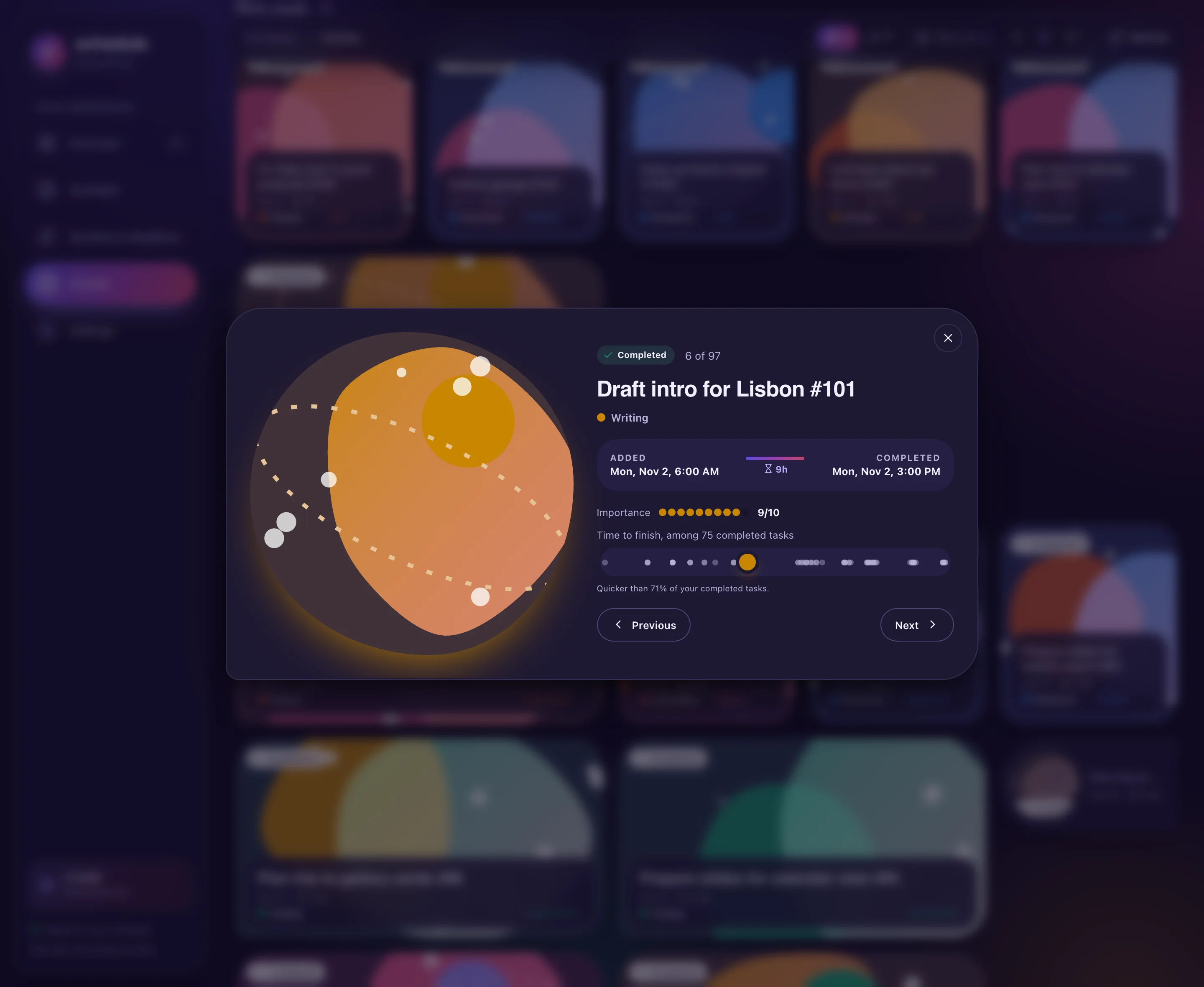
The gallery shows every finished task as a card with generated artwork in its type's color. More important completed tasks get larger cards; cancelled and dropped tasks get compact cards. Filter by outcome or type, search by name, sort by date, importance, or time to finish, or click a square in the rhythm grid to see one day. Hover over a card, or over any task in the tree, for when it was added and finished, how long it took, and how that compares with your other completed tasks; keyboard focus shows the same details. Click a task to open its full story, and use the arrows or arrow keys to move between tasks there.
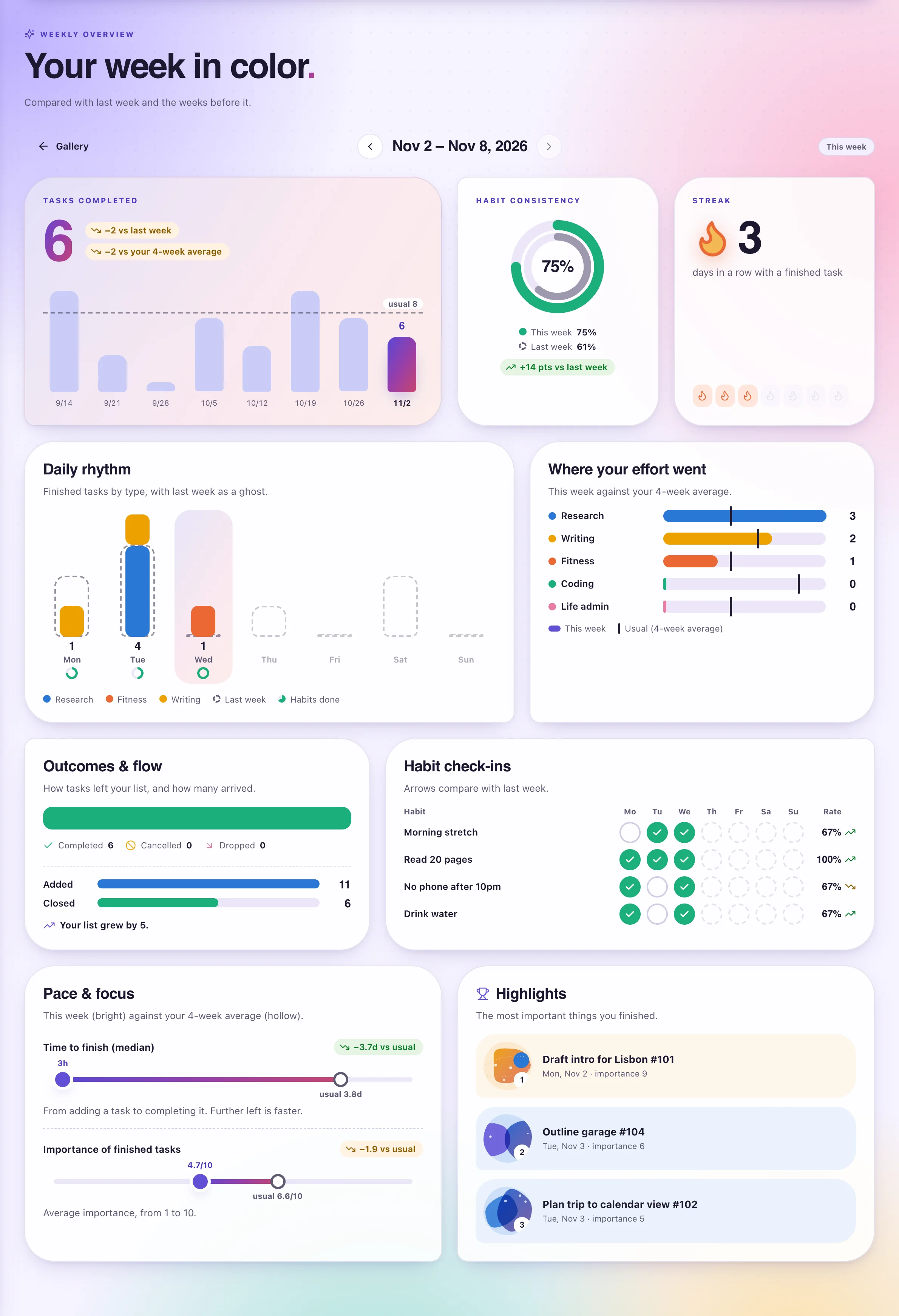
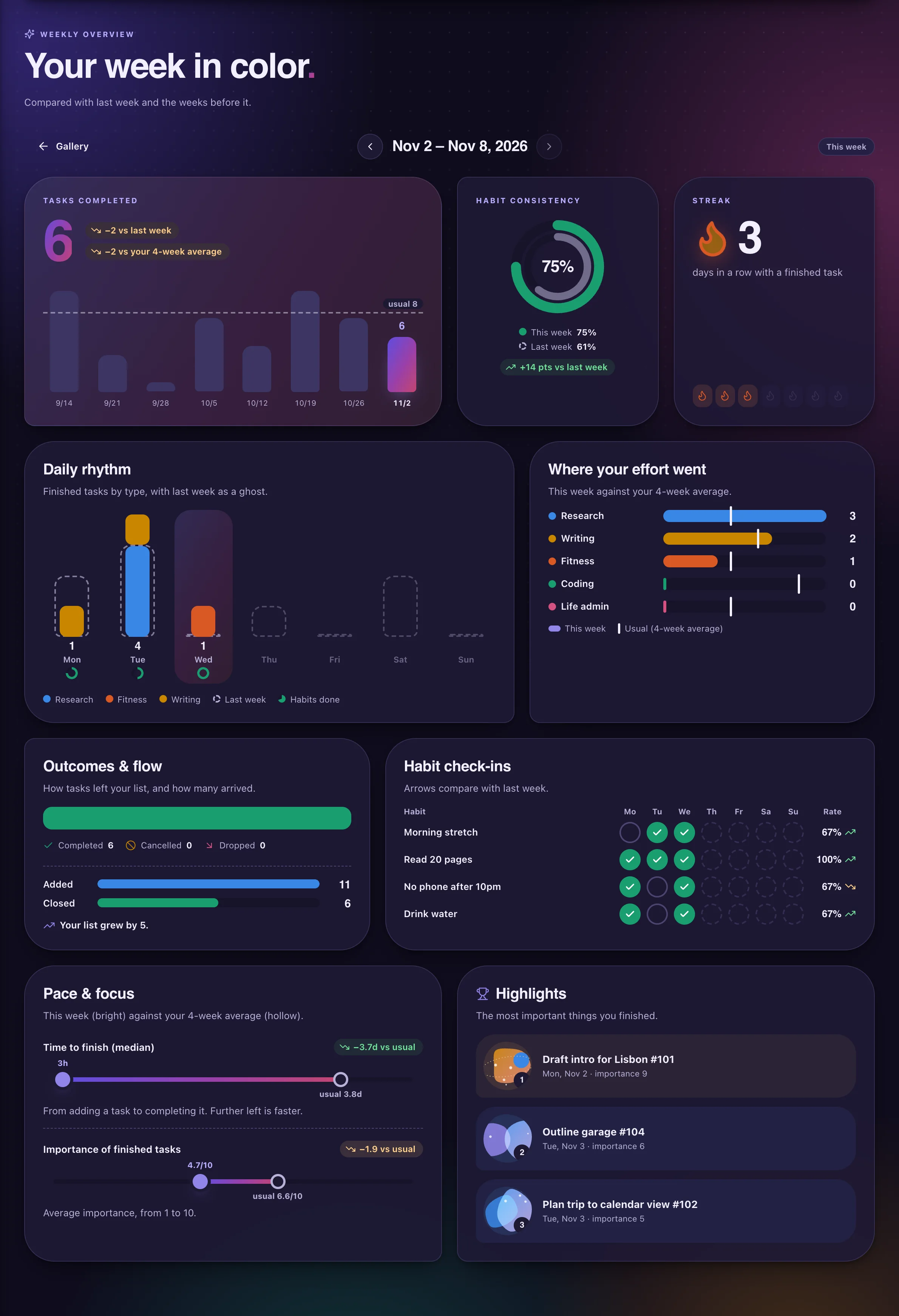
The weekly overview replaces the weekly and monthly PDF reports in the browser. Open it from the Weekly overview card and use the arrows to move between weeks. It compares the week with the previous week and with the average of up to four earlier weeks that have recorded activity:
- tasks completed, with an eight-week trend
- habit consistency (this week and last week as nested rings) and a habit check-in grid
- a streak of consecutive days with a completed task
- completed tasks per day by type, with last week shown as outlines
- completed tasks per type against your usual amount
- how tasks left your list (completed, cancelled, dropped) and tasks added vs. closed
- median time from adding a task to completing it, and the average importance of completed tasks
- the most important tasks you finished
Days follow your computer's local time zone. The CLI still generates weekly and monthly PDF reports.
Reading your day
In J mode, the overview puts overdue deadlines, deadlines due today, available tasks with
importance 8–10, and habit completion at the top. Tasks postponed with rmd add
do not count as available until their reminder date. Red identifies overdue or invalid deadlines,
amber identifies deadlines due today or within three days, and the accent color highlights
high-importance tasks. Each status also has a text label. The current and next
schedule blocks appear beside the three nearest deadlines; open Routines &
deadlines to see every deadline.
Deadlines share the task types you manage on the task board. Choose the type in the add/edit dialog; its name appears beside the deadline date in both views. Existing deadlines remain Uncategorized until you assign a type. Editing just the event or date preserves its category.
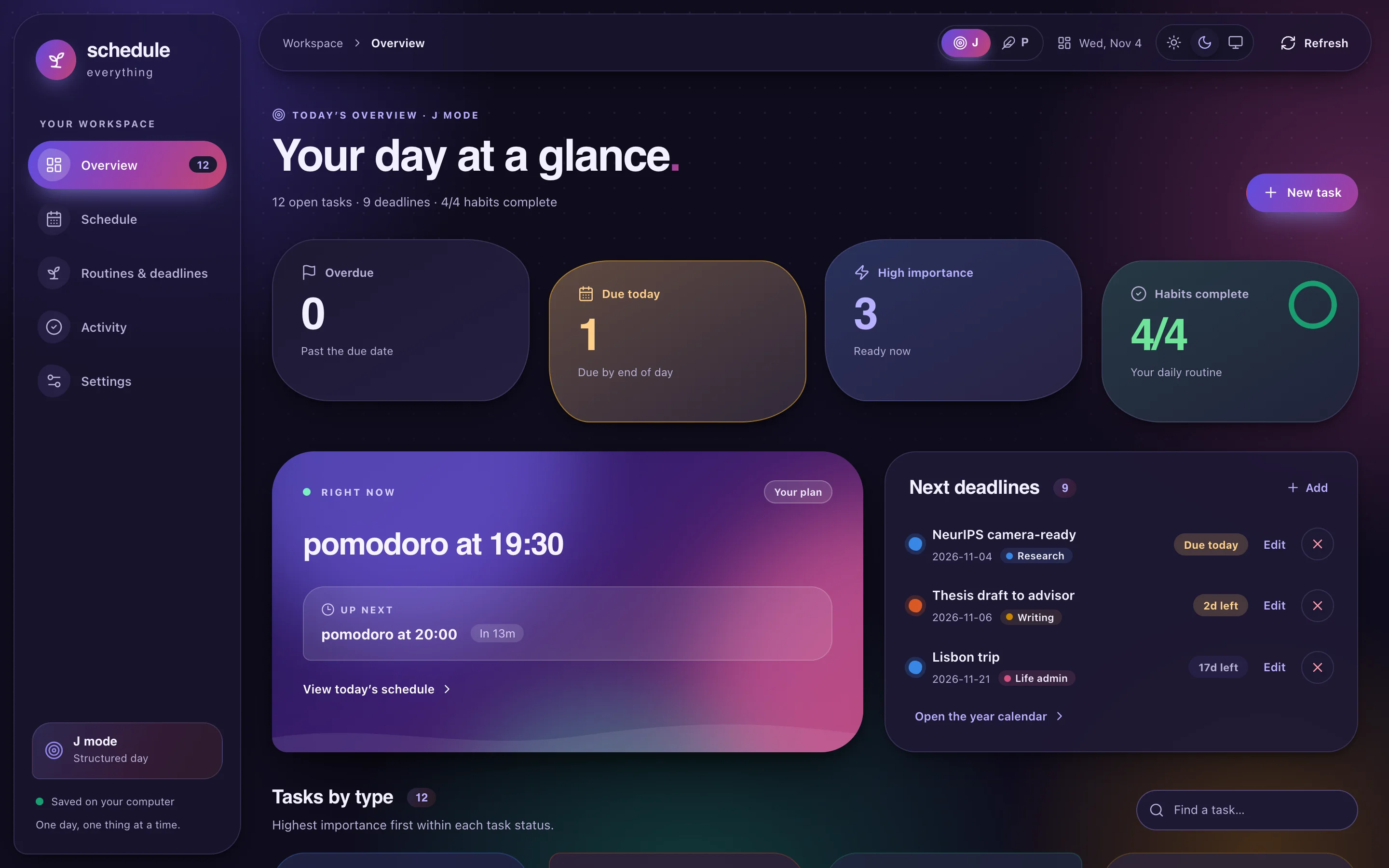
Use the sun (Light), moon (Dark), or monitor (System) buttons in the header to change appearance on any page. System is the default and follows changes to your operating system's appearance. An explicit choice persists in this browser, and switching themes preserves any form you are editing.
Messages that confirm an action stay at the top of the page until you dismiss them with their × button or Esc.
The layout adapts to narrow windows down to phone width: the sidebar becomes an icon rail and cards stack.
Tasks preserve their importance (1–10), type, progress, finish-by time (for timed
tasks), subtasks, postponed reminder date (set with rmd add), and procrastination status. The board groups the same tasks returned by rmd ls
without imposing a display limit. In the compact layout, groups with more
important work come first: they are ordered by the average importance of their
tasks, then by how many tasks they hold. Types without tasks stay off the board,
on a quieter shelf below it; add a task to one with its + button and it
moves up to the board.
The groups keep their places while you stay on the page, so the group you are
typing in never jumps away: a task you add appears in its group, a type that
gets its first task joins the end of the board, and a group whose tasks are all
done stays put with All done here instead of leaving. Opening the page
again (from the sidebar), switching mode or layout, or Refresh arranges the
board anew.
Inside each group, the existing ordering is preserved: procrastinated tasks,
available tasks, then postponed tasks, with importance descending within each
section. The overview refreshes every 30 seconds when you are not editing.
The CLI table and task IDs are unchanged. Completing a task matches rmd rm;
cancel and drop remain distinct from completion in history and reports.
Clicked complete by mistake? The notice at the top of the page names the task and has an Undo button (or press ⌘Z / Ctrl+Z when you are not typing in a field). Undo puts the task back where it was, with its importance, type, progress, finish-by time, postponed date, and deferral, and takes the completion out of your history and reports. Cancel and drop can be undone the same way. You can undo until the notice is dismissed or replaced by your next action. A notice goes away on its own after 10 seconds; while your pointer rests on it, or focus is inside it, it stays.
To add a task to a group, click Add a task at the bottom of the group, type it, set its importance, and press Enter. The form stays open for the next task; Esc closes it. New task in the heading still opens the full form, where you can also make the task timed.
Suggestions from your AI agent
An AI agent can suggest tasks, for example the
suggest-tasks skill running every morning
over your email and calendar. A suggestion is not a task yet. It waits in its
type's group below your own tasks, and looks different from them: a dashed,
striped card that says who suggested it and where it came from (Suggested by
Claude · from Gmail), with the agent's reason underneath. A suggested
pill beside the board's heading counts what is waiting. Reminders, the task
counts, the workload, timers, and your statistics leave suggestions out.
Each suggestion has three buttons:
- Add to my tasks makes it a normal task in that group, with the suggested importance, type, and finish-by time. From then on it is like any task you added yourself, and adding it counts in your history.
- Adjust opens the task form with the suggestion filled in, so you can change its wording, importance, type, or timing first. Add to my tasks in the form adds it.
- Reject removes it from the board. Agents see that you turned it down,
and
rmd suggest addrefuses to suggest the same task again.
The notice after adding or rejecting a suggestion has an Undo button that puts the suggestion back for review. A type whose only content is a suggestion comes up from the shelf to show it. A folded group shows a suggested by line that opens the group. Search finds suggestions as well as tasks. New suggestions appear within 30 seconds while the page is open, or at once with Refresh.
Progress, subtasks, and timers
Every task has a Progress slider from 0 to 100%. Drag it, or focus it and use the arrow keys, whenever the work moves on; it saves as you let go.
To break a task down, click the checklist button beside its slider, type a subtask, and press Enter; the field stays open for the next one, and Esc closes it. From then on the task's progress follows its subtasks (two of four checked is 50%), and the slider gives way to a meter. Check subtasks off on the card, or remove one with its × (Undo in the notice brings it back). Removing every subtask keeps the last progress as the task's own.
A timed task has a time it should be finished by. Turn on Timed task in the task form (New task or Edit), or choose Make it a timed task… under a task's More options, and pick the finish time. The task's card then shows when it is due and how long is left. Stop timing under More options makes it a normal task again; normal tasks never affect the timers.
Above the board, a row of timers runs, soonest first:
- Task timers (solid cards in the task's type color, with its progress) count down to the finish time of every unfinished timed task due by tonight. At midnight the row starts over with the next day's timed tasks. A task with subtasks shows how many are done and its next one, which you can check off right on the timer.
- Each timer has a dial: a ring that drains as its time runs out, around an icon for how close it is. A clock sweeps its hands while there is time; an hourglass turns in the last three hours (six for a deadline); an alarm clock rings in the last hour; a bell swings once a task is overdue. When all of a task's work is done, a party popper appears with a Complete button.
- Overdue tasks turn red: the timer counts up from the finish time, the card on the board gets a red edge, and the group's summary counts it as overdue. An overdue task keeps its timer until you finish it or change its time.
- Deadline timers (striped tickets with a dashed edge) count down to the end of the day of each deadline in its last 24 hours, and disappear once it passes. Close one with its × to hide just that timer in this browser. The deadline itself, the deadlines list, the calendar, and your activity are left as they are, and Undo in the notice brings the timer back.
On top, Today's timed work is one bar for the day: each timed task due by tonight is a segment filled as far as it has come, finished ones in green and overdue ones in red. The percentage is their average progress. Tasks you finish today count as 100%, so completing one never lowers the bar. Turn on Weigh today's progress by importance in Settings to count each task by its importance instead: an importance-9 task then moves the bar three times as much as an importance-3 one, and its segment is wider.
Fold in the board's heading turns each group into a summary: its average importance as a ring, every task as a dot on a 1–10 scale, its average progress (and how many of its tasks are at 100%), its share of your open tasks, and how many tasks are important (8 or more), overdue, timed, or deferred. Expand brings back every task, and the arrow in a group's header folds or opens just that group. Your choice is remembered in this browser; a search always lists the matching tasks.
Task types, which deadlines share, are managed on the board too:
- Add a type with New type at the end of the shelf. It waits on the shelf until it gets its first task.
- Rename a type from the ⋯ menu in its group's header (the task count turns into ⋯ when you point at a group; on the shelf, ⋯ sits beside the type's name), or double-click its name. Press Enter to save or Esc to keep the old name.
- Delete a type from the same menu. The group asks where its open tasks should go, and its deadlines go with them; deadlines of a type without tasks can instead lose their type. At least one type always remains. Finished tasks in Activity keep the deleted type's ID.
A new type never reuses the ID of a type you deleted earlier, so it doesn't inherit that type's finished tasks. Each type keeps its color: deleting one never recolors the others, and a new type takes the color used least.
Workload, layouts, and the daily overview
Workload is how much open work you have, weighted by importance: every open task counts its importance out of 10, times the share of it still left. An importance-8 task counts 0.8 untouched, 0.4 half done, and nothing at 100%. Tasks postponed to a later day wait until then. The total falls into one of five levels:
| Level | Workload |
|---|---|
| All clear | 0 |
| Light | under 2.5 |
| Steady | 2.5 to 5.5 |
| Busy | 5.5 to 9 |
| Heavy | 9 and up |
These are the defaults. To make the levels fit your days, set where Steady, Busy, and Heavy start under Where each level starts in Settings; each must be above 0 and higher than the one before it, and Light covers everything between 0 and Steady. Reset brings the defaults back. Like the other display choices, the numbers are saved in your browser.
The level shows in the header on every page (select it to open the daily overview), and the workspace's theme follows it: the background, its color blobs, and the glass surfaces shift from cool greens and blues when your plate is clear to warm oranges and reds when it is heavy. Your progress tempers it: as today's timed work bar fills, the colors ease part of the way back toward the calm of All clear (up to 40% of the way once the bar is full), and the warm glow of a busy or heavy day fades. The workload still sets the tone; with no timed work due today, only the workload counts. Turn this off with Theme follows your workload in Settings.
The board has two layouts; switch with Compact / Spread beside Fold, or in Settings. Compact packs the groups in rows, those with more important work first. Spread places them by workload: the heaviest group sits in the middle, and every other group sits farther out the lighter it is, so the distance between two groups shows how different their loads are. Rings behind the groups mark the distances, and each group wears its workload on a badge. On narrow screens the spread groups stack in one column, the gap before each one growing with how much lighter it is.
The daily overview on the Overview page (below the right-now card in J mode, below the board in P mode) sums up your day: how many tasks you finished against yesterday and your usual day, when you finished them hour by hour, your workload as a gauge with its split by type, how far along today's timed work and all your open tasks are, your streak and habits, and the most important things you finished. Fold it into one line with the arrow in its corner; the choice is remembered in this browser.
Glossary
The Glossary page explains every number in the workspace, from importance and workload to the weekly overview, the rhythm grid, and plugin metrics such as volume and the estimated one-rep max. Each metric has a small animated picture, how it is counted as a formula, an example, your own current value when there is one, and links to the places that show it. Search finds a metric by any word in its explanation; the workload card also lets you try how one task's importance and progress add to your workload. Open it from the sidebar, from What do these numbers mean? on the daily and weekly overviews, or from the ? beside Workload.
Plugins
A plugin is a task category that needs more than a list: fitness training, guitar practice, learning Spanish. (These are workspace plugins; the plugin for your AI agent is a different thing, described below.) Each plugin owns one task type, so its tasks are ordinary tasks of that type: they sit in the type's group on the board, run in the timers, and land in the Activity history. On top of that, the plugin keeps its own data and log.
Add one in Settings → Plugins, from a template (Fitness, Guitar practice, Language learning, Reading, or your own tracker). Name it, describe it, pick an icon, and choose a new task type or one you already have. Four switches decide where it shows up:
- Own page: an entry under Plugins in the sidebar.
- Tracked in Activity: its own metrics when Activity is viewed by its category.
- In the timer row: a card above the board, such as a workout in progress or a practice timer.
- Visible to AI agents: your agent reads its description and data with
rmd suggest ls --jsonand can suggest tasks for it. Off by default.
Removing a plugin keeps its tasks as a plain type; Undo brings the plugin back. While a plugin owns a type, the board does not delete that type.
Fitness
- Body figure: the front and back of a body, each muscle shaded by how many sets worked it this week. Hover over a muscle for its sets and when it was last trained; click it to find exercises for it.
- Workout builder: add exercises from the library and adjust each unit (sets, reps, weight, seconds, minutes, distance, rest) with − and +. It estimates the time, volume, calories, and the muscles worked. Start it now, plan it as a task (optionally timed), log it as done, or save it as a routine. Five routines get you started.
- Live session: check off each set (adjusting the reps and weight you actually did), with a rest countdown that chimes when it ends. The session survives a reload and shows in the timer row. Finishing it logs the workout and completes its task.
- Progress: workouts and volume per week against your goal, personal records with an estimated one-rep max, body weight with a goal line, and recent workouts. Weights can be shown in kg or lb.
A planned workout is a task in the plugin's group, with each exercise as a step and a Start workout button.
Your own trackers
A tracker records the metrics you define: minutes, numbers with a unit (a week counts their total, best, or average), or notes such as the piece or the lesson, each with an optional weekly goal. Log a session from its page, or run the practice timer and fill in the rest when you stop it. Every logged session is also a finished task in Activity.
Activity by category
Above the Activity history, View by category shows one category at a time: its finished tasks per week, how many this week and last, and how long they took. A plugin tracked in Activity adds its own metrics there, such as the fitness body figure, records, and body weight.
AI agent plugins
Schedule building and daily planning happen in your own coding agent through the Schedule Everything plugin for Claude Code, OpenAI Codex, or Google Antigravity. The Plan with your AI agent card on the Schedule page has a tab for each agent with its install commands (each with a copy button) and example prompts such as "Build my weekly schedule", "Plan my focus blocks for today", and "Suggest tasks from my email and calendar". See AI agent plugins.
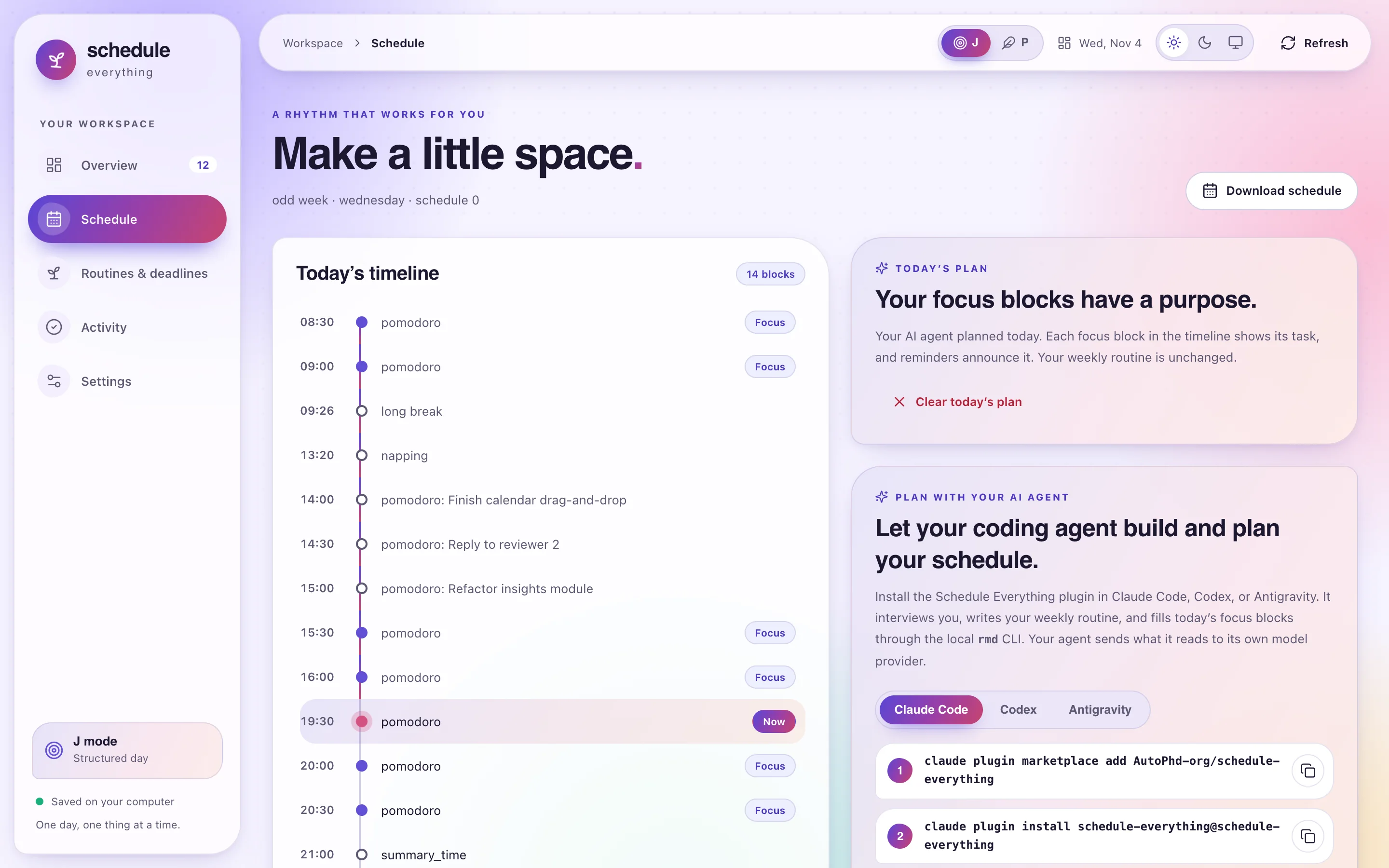
When today has a plan, a Today's plan card appears and each planned focus
block in the timeline shows its task. Clear today's plan removes it, like
rmd sync --clear; your weekly routine files are not changed. Task, schedule,
and settings editing in the browser works without an agent.
Reusing an open tab
A second rmd web invocation contacts the existing server for the active config
root and signals its open workspace tab instead of opening another one. The tab
requests focus, but browser settings may prevent automatic foregrounding.
Closing the tab leaves the server running; relaunching opens a tab again.
Use Settings → Close browser service to shut down the local browser server.
Different config roots have separate servers and workspaces.
rmd web --port 8765   # choose the port for a new server
rmd web --no-open     # start/reuse the server and print a private launch link
The port flag applies only when starting a server. Treat the launch link printed
by --no-open as private: its fragment contains the local session token. Normal
launch removes the token from the address bar once the session is established.
The local .browser.json registry and .browser.log are runtime files, and
.phone.json holds the phone token; exclude .browser* and .phone.json from
version control if you version your config root.
Using it from your phone
Your phone can use the workspace on your computer while you keep working there. Both see the same tasks, plan, deadlines, habits, and history, because they use the same server and files. Nothing is copied or synced.
rmd web --phone       # turn phone access on and show the pairing code
rmd web --no-phone    # turn it off and sign every phone out
rmd web --phone prints a QR code and a pairing link for your Wi-Fi, and
another pair for Tailscale when the computer is on it. Scan the code for the
network your phone uses with its camera, or open the link on the phone. A phone
signed in over Wi-Fi is not signed in over Tailscale, so pair it on each one you
use. The phone stays signed in (for up
to 400 days), so later you only need the address, for example
http://192.168.1.20:8765/. Add it to the home screen or bookmark it. A plain
rmd web prints that address while phone access is on, and rmd web --phone
shows the code again without signing anyone out.
- Network. The phone needs to be on the same Wi-Fi as the computer. With Tailscale on both, it also works away from home or on cellular data. The Wi-Fi code uses the computer's Wi-Fi or Ethernet address, not a VPN's.
- Other VPNs. A VPN that takes over all of the computer's traffic, such as a
work VPN like Cisco Secure Client, can also take over Tailscale's. The
phone's requests then arrive, but the replies go into that VPN and never reach
the phone.
rmd web --phonewarns when this happens. Disconnect the other VPN while you use your phone over Tailscale (if Tailscale still does not connect, turn it off and on again on the computer). - Availability. The computer must be awake. While phone access is on, the reminder service starts the workspace at login, and new servers keep the port your phone knows.
- Reminders. Alarms and dialogs still appear on the computer only.
- macOS firewall. If macOS asks whether
rmdmay accept incoming network connections, choose Allow. After you updatermd, the first connection can take a few seconds while macOS checks the new binary.
With phone access on, the server listens on all network interfaces instead of
only 127.0.0.1. It accepts requests addressed to one of the computer's IPv4
addresses, never to a host name, so a web page cannot reach it by pointing its
own domain at your computer. Every API request still needs either the desktop
session token or the phone token, and .phone.json in the config root keeps the
phone token readable only by you. The connection is plain HTTP, so someone on the
same network could read the token from your traffic. Use phone access on
networks you trust, or over Tailscale, which encrypts it. rmd web --no-phone
deletes the token, so turning phone access back on pairs phones anew.
Local storage and access
The server binds only to 127.0.0.1, unless you turn on phone access. It checks
the host, request origin, and session token before accepting API calls. It does not upload the local database
and makes no AI requests. If you use an agent plugin, the agent sends what it
reads to its own model provider. Browser settings edits are validated before saving and reject
stale revisions. Saving changes reloads the installer-managed reminder service
when available; standalone installs report when that helper is absent.
Native desktop application bundles and desktop widgets have been removed. Existing local data needs no migration. Previously installed application/widget copies can be removed normally; they are no longer updated by this project. The background reminder service and its system notifications remain available.
Developing the browser interface
bun install
bun run build
bun run test
cargo test
cargo run -- web
Use bun run test, not bun test: the project's tests run on Vitest, while
bun test starts Bun's own test runner. Dependencies are locked in bun.lock;
the build tools run on Node.js 20 or newer.
Frontend source is in web/; bun run build writes assets into
crates/rmd/web-static/. These assets are compiled into the rmd
binary, so end users do not need Node.js or a frontend development server
(rebuild rmd after bun run build to serve new assets).
Commit the rebuilt assets with frontend changes. For frontend development, run
rmd web --port 8765 --no-open, then bun run dev; open the development URL
with the printed #token=... fragment. The Vite proxy routes local API requests
to port 8765.