Quick Start
This guide focuses on the fastest path to a useful schedule.
If you use an AI coding agent (Claude Code, OpenAI Codex, or Google Antigravity), let it build your schedule through the Schedule Everything plugin. If you prefer hand-editing TOML, the manual path is further down this page.
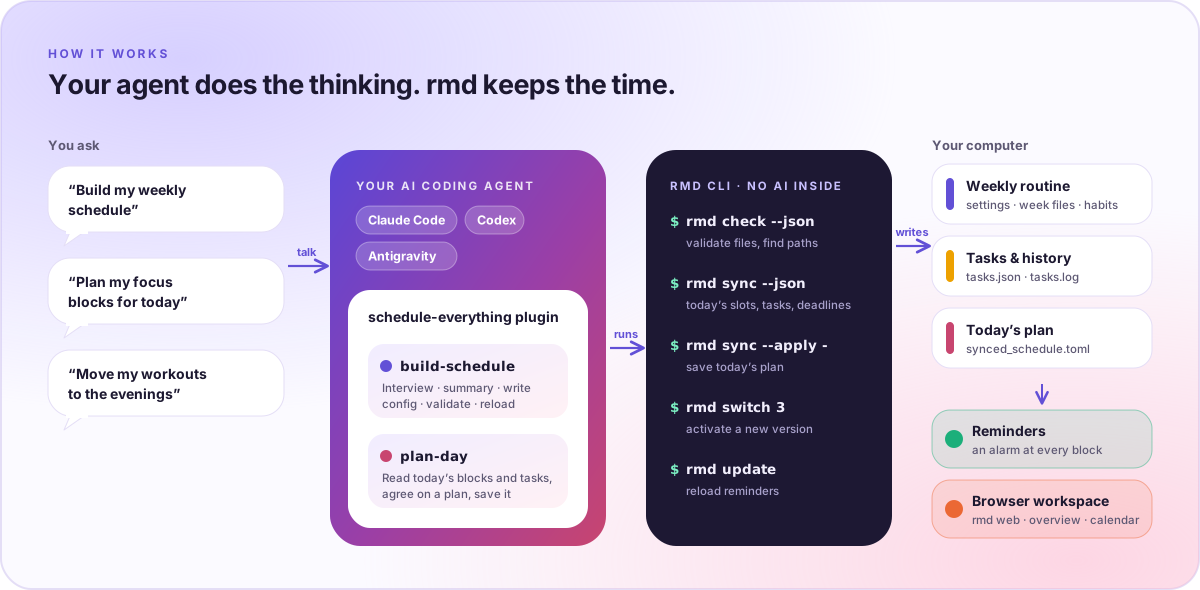
Fastest path: build it with your AI agent
1. Install Schedule Everything
The installer builds rmd from source, so install Rust first. Then:
curl -fsSL https://raw.githubusercontent.com/AutoPhd-org/schedule-everything/main/install.sh | bash
Or from a clone:
git clone https://github.com/AutoPhd-org/schedule-everything.git
cd schedule-everything
./install.sh
The installer builds rmd and puts it in ~/SCHEDULE_MANAGEMENT, scaffolds your configuration in
~/.schedule_management/config, and registers the reminder service. See
Installation for details.
2. Install the plugin in your agent
- Claude Code
- Codex
- Antigravity
claude plugin marketplace add AutoPhd-org/schedule-everything
claude plugin install schedule-everything@schedule-everything
codex plugin marketplace add AutoPhd-org/schedule-everything
codex plugin add schedule-everything@schedule-everything
git clone https://github.com/AutoPhd-org/schedule-everything.git
agy plugin install ./schedule-everything/plugins/schedule-everything
More options and what the plugin does: AI agent plugins.
3. Ask your agent to build your schedule
Ask: "Build my weekly schedule". What happens:
- The
build-scheduleskill creates or refinesprofile.mdnext to your schedule files. - It asks follow-up questions until that profile is detailed enough to plan from.
- It shows a plain-language summary and waits for your confirmation before writing the schedule.
- It validates the files with
rmd checkand reloads reminders withrmd update.
The agent sends what it reads to its own model provider; Schedule Everything itself makes no AI calls.
4. Add tasks and plan today
rmd add "Finish proposal draft" 9
rmd add "Review pull request" 7
Then ask your agent: "Plan my focus blocks for today". The plan-day skill
reads rmd sync --json, assigns open tasks to today's untitled
pomodoro/potato blocks, confirms the plan with you, and saves it to
synced_schedule.toml with rmd sync --apply.
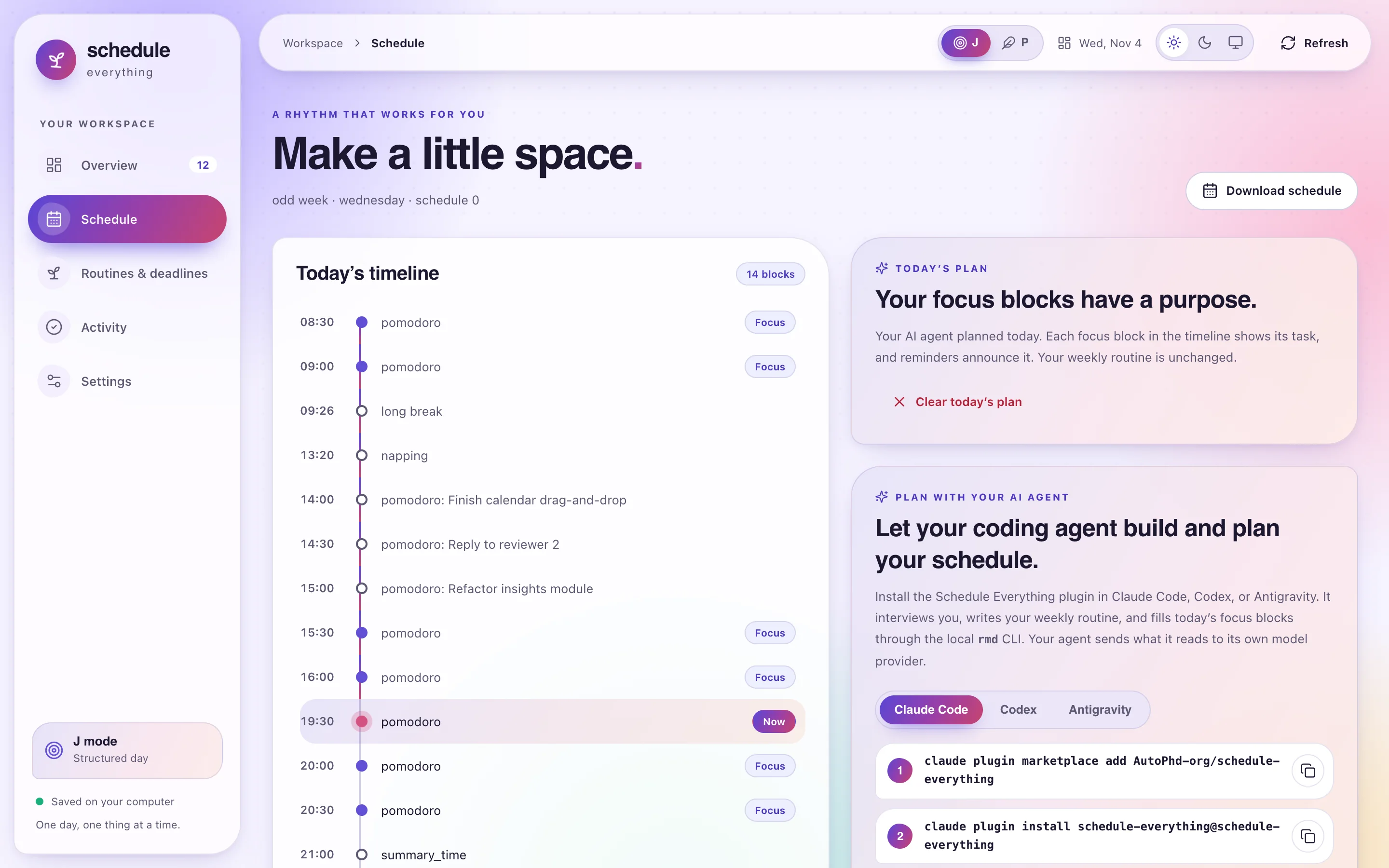
5. Open the workspace and verify
rmd web      # browser workspace
rmd check    # validate the active configuration
rmd status   # what is active now and next
rmd sync     # today's focus blocks and their planned tasks
Manual path: hand-editing the schedule
Use this if you want full manual control over the TOML files. The installer
already creates a starting user_config_0; edit it with rmd edit settings,
rmd edit odd, and rmd edit even, or in the browser under Settings.
1. Create the config files (without the installer)
From a clone of the repository:
mkdir -p ~/.schedule_management/config/user_config_0
cp config/user_config_0/settings_template.toml ~/.schedule_management/config/user_config_0/settings.toml
cp config/user_config_0/week_schedule_template.toml ~/.schedule_management/config/user_config_0/odd_weeks.toml
cp config/user_config_0/week_schedule_template.toml ~/.schedule_management/config/user_config_0/even_weeks.toml
cp config/user_config_0/habits_template.toml ~/.schedule_management/config/user_config_0/habits.toml
Schedule changes made by the build-schedule skill create user_config_1,
user_config_2, and so on under the same config root.
2. Define reusable blocks in settings.toml
[settings]
sound_file = "/System/Library/Sounds/Ping.aiff"
alarm_interval = 5
max_alarm_duration = 300
show_tasks_after_add = false

[time_blocks]
pomodoro = 25
short_break = 5
long_break = 15
meeting = 60
lunch = 60

[time_points]
bedtime = "Wind down and disconnect 😴"
standup = "Daily Standup Meeting 🗣️"
3. Map time to actions in odd_weeks.toml
[common]
"12:00" = "lunch"
"23:00" = "bedtime"

[monday]
"09:00" = "pomodoro"
"09:25" = "short_break"
"09:30" = "pomodoro"
"10:00" = { block = "meeting", title = "Weekly Planning" }
For a simple weekly schedule, copy the same structure to even_weeks.toml.
4. Validate and reload
rmd check
rmd update
5. Optional: plan today later
Once you start using tasks, save a plan for today's focus blocks with
rmd sync --apply (or let the plan-day skill do it). The plan is stored as
a daily overlay:
[schedule]
"09:00" = { block = "pomodoro", title = "Finish proposal draft" }
That overlay lives in synced_schedule.toml and does not rewrite your base
odd/even week templates. rmd sync --clear removes it. See
how today's schedule is built.