Installation
This guide installs the rmd CLI, your configuration, and the background
reminder service, then adds the plugin to your AI agent.
Compatibility: macOS (via
launchd) and Linux (via asystemduser service). Windows support is on the roadmap.
Prerequisites
- Rust: the installer builds
rmdfrom source withcargo - curl and tar, or Git: to fetch the installer and the repository
- Terminal: any standard terminal (Terminal.app, iTerm2, GNOME Terminal, …)
- An AI coding agent (optional): Claude Code, OpenAI Codex, or Google Antigravity, to build schedules and plan days with the Schedule Everything plugin
- Node.js: only needed to rebuild the browser assets from source; the binary includes them
No Python is required. rmd is a single binary with the browser workspace built in.
Method 1: Automated installer (recommended)
The install.sh script installs the rmd binary, scaffolds your
configuration, and registers the background service in one go. It installs
rmd as the primary CLI and keeps reminder as a compatibility alias.
curl -fsSL https://raw.githubusercontent.com/AutoPhd-org/schedule-everything/main/install.sh | bash
Or, from a clone of the repository:
git clone https://github.com/AutoPhd-org/schedule-everything.git
cd schedule-everything
./install.sh
The script:
- downloads the repository to a temporary directory when run through
curl; - checks that
cargois available before changing anything, then buildsrmdwith it (the first build takes a few minutes); - installs the binary in
~/SCHEDULE_MANAGEMENT, together with logs and a copy of the agent plugin; - stops a running reminder service first and starts it again on the new binary, so upgrading from an older (Python-based) installation keeps the service running;
- creates your config root in
~/.schedule_management/configwith a firstuser_config_0version (an existing config is kept); - prompts for missing required config values one by one (time blocks, reminders, and task types are your own lists, so entries you removed are not asked for again; their examples are offered only when a whole section is missing);
- registers the background service (LaunchAgent on macOS, systemd user service on Linux).
Then start the service:
- macOS (launchd):
launchctl load ~/Library/LaunchAgents/com.sergiudm.schedule.management.reminder.plist
- Linux (systemd user service):
Enable lingering so the user service runs without an active login session:systemctl --user start schedule-management.servicesystemctl --user enable schedule-management.service # auto-start at login
loginctl enable-linger "$USER".
Method 2: Manual installation
For advanced users or those integrating into existing environments. This method does not register the background service; use the installer for that.
-
Build and install
rmd(needs Rust):git clone https://github.com/AutoPhd-org/schedule-everything.gitcd schedule-everythingcargo install --path crates/rmd --lockedThis puts
rmdin~/.cargo/bin. -
Create the configuration from the templates in
config/user_config_0/:mkdir -p ~/.schedule_management/config/user_config_0cp config/user_config_0/settings_template.toml ~/.schedule_management/config/user_config_0/settings.tomlcp config/user_config_0/week_schedule_template.toml ~/.schedule_management/config/user_config_0/odd_weeks.tomlcp config/user_config_0/week_schedule_template.toml ~/.schedule_management/config/user_config_0/even_weeks.tomlcp config/user_config_0/habits_template.toml ~/.schedule_management/config/user_config_0/habits.toml -
Point the CLI at it (optional when you use the default location above). Add to your shell profile (
~/.zshrc,~/.bashrc, …):export REMINDER_CONFIG_DIR="$HOME/.schedule_management/config" -
Validate:
rmd check
Add the AI agent plugin (optional)
Building a schedule and planning a day happen in your own coding agent. The
plugin lives in the plugins/schedule-everything
directory of the repository and is installed into your agent, not into
Schedule Everything:
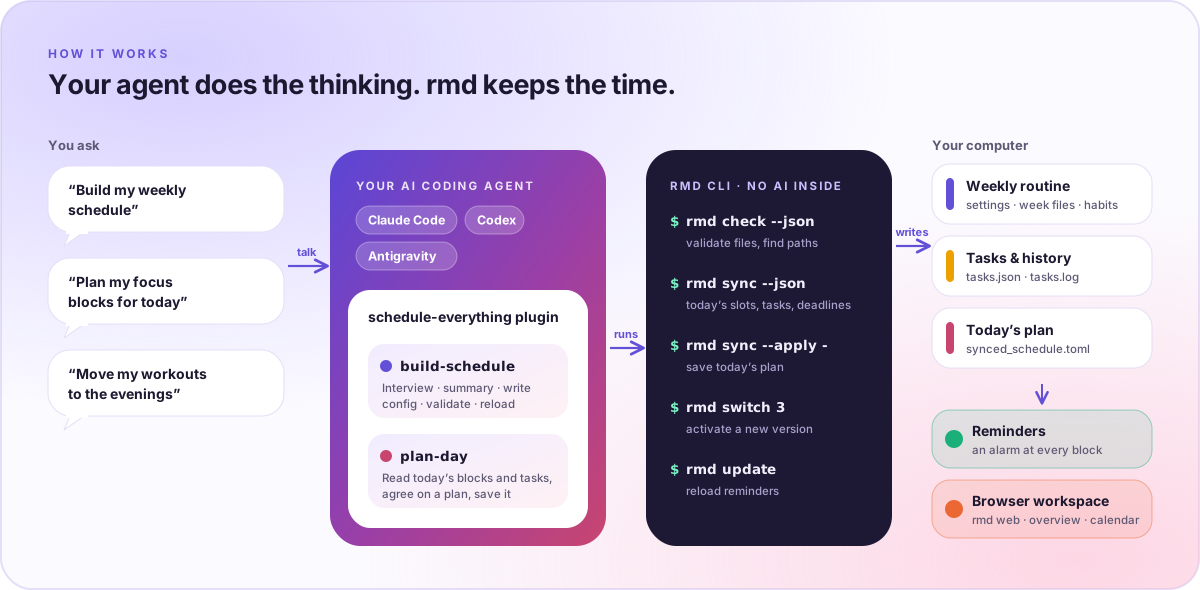
- Claude Code
- Codex
- Antigravity
claude plugin marketplace add AutoPhd-org/schedule-everything
claude plugin install schedule-everything@schedule-everything
在 Claude Code 会话中,改用斜杠命令:
/plugin marketplace add AutoPhd-org/schedule-everything
/plugin install schedule-everything@schedule-everything
codex plugin marketplace add AutoPhd-org/schedule-everything
codex plugin add schedule-everything@schedule-everything
Codex 从仓库的插件市场目录 .agents/plugins/marketplace.json 读取插件。
git clone https://github.com/AutoPhd-org/schedule-everything.git
agy plugin install ./schedule-everything/plugins/schedule-everything
Antigravity 从仓库的本地克隆安装插件。
The installer also copies the plugin to ~/SCHEDULE_MANAGEMENT/plugins/schedule-everything,
so Antigravity users can run agy plugin install ~/SCHEDULE_MANAGEMENT/plugins/schedule-everything
instead of cloning. See AI agent plugins for the skills and
example prompts. The agent sends what it reads to its own model provider;
Schedule Everything itself makes no AI calls.
Browser workspace
Launch the local browser interface:
rmd web
It uses the same local files as the CLI: tasks, deadlines, habits, today's
plan, the agent plugin install commands, configuration editing, mode and
schedule switching, reminder controls, and PDF downloads. Launching again
reuses an open workspace tab. The server listens only on 127.0.0.1 (unless
you turn on phone access) and keeps
running when the terminal closes. The installed package includes the browser
assets; no native desktop app or widget is shipped. See
Browser workspace.
Verifying the installation
-
Check the CLI:
rmd --helpExpected: a list of available commands.
-
Check the service:
- macOS:
Expected: a process ID and status code (usually 0).launchctl list | grep schedule
- Linux:
Expected:systemctl --user status schedule-management.service
active (running)with recent log lines.
- macOS:
-
Validate the configuration:
rmd checkExpected: the config root, the checked directory and its files, then "Configuration is valid."
-
View the schedule:
rmd statusExpected: what is active now and the next event.
Uninstallation
-
Unload the service:
- macOS:
launchctl unload ~/Library/LaunchAgents/com.sergiudm.schedule.management.reminder.plistrm ~/Library/LaunchAgents/com.sergiudm.schedule.management.reminder.plist
- Linux:
systemctl --user stop schedule-management.servicesystemctl --user disable schedule-management.service
- macOS:
-
Remove the app:
rm -rf "$HOME/SCHEDULE_MANAGEMENT" -
Remove your configuration and history (optional; this deletes your schedules, tasks, and habit records):
rm -rf "$HOME/.schedule_management" -
Remove the plugin from your agent with that agent's plugin commands.
Troubleshooting
- "command not found: rmd": add
~/SCHEDULE_MANAGEMENTto yourPATH(the installer prints the exact line) and reload your shell profile. - Service not starting: check the logs in
~/SCHEDULE_MANAGEMENT/logs/, or runrmd updateto reload the service. - Configuration errors: run
rmd checkfor missing files, TOML syntax errors, unknown blocks, and likely label typos.