weekly-schedules
sidebar_position: 3 description: How odd_weeks.toml, even_weeks.toml, [common], and today's plan combine into the reminders you get.
Weekly Schedules
Weekly schedule files (odd_weeks.toml and even_weeks.toml) define your day-to-day routine. The system automatically alternates between these files based on ISO week numbering.
File Structure
[monday]
# Monday-specific schedule

[tuesday]
# Tuesday-specific schedule

[wednesday]
# Wednesday-specific schedule

[thursday]
# Thursday-specific schedule

[friday]
# Friday-specific schedule

[saturday]
# Saturday-specific schedule

[sunday]
# Sunday-specific schedule

[common]
# Events that apply to all days
Only [monday] through [sunday] and [common] are allowed. [common]
applies to every day; a weekday entry at the same time overrides it. Use
skip_days in settings.toml for days with no reminders.
How today's schedule is built
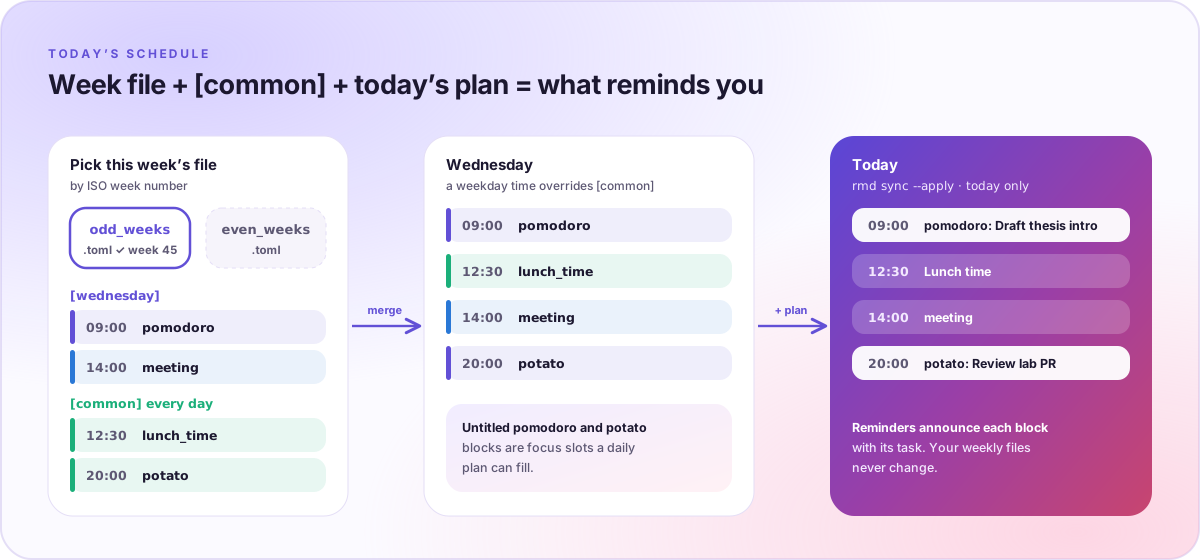
- Pick this week's file by ISO week number: odd weeks use
odd_weeks.toml, even weeks useeven_weeks.toml(rmd statusshows the current parity). - Merge today's weekday table with
[common]. At the same time, the weekday entry wins. - Overlay today's plan, if there is one. Untitled
pomodoroandpotatoblocks are focus slots; a plan saved withrmd sync --apply(usually by theplan-dayskill) gives them task titles for today only. Your week files never change.
The result is what the reminder service announces and what rmd status -v
and the browser timeline show.
Event Types
1. Time Block References
Reference time blocks defined in settings.toml:
"09:00" = "pomodoro"        # 25-minute work session
"10:00" = "long_break"      # 40-minute break
"14:00" = "meeting"         # 50-minute meeting
2. Time Point References
Reference time points defined in settings.toml:
"22:45" = "go_to_bed"       # Bedtime reminder
"21:00" = "summary_time"    # Daily summary reminder
"12:00" = "lunch_time"      # Lunch reminder
3. Direct Messages
Write custom messages directly. They show as a plain reminder with no duration,
and rmd check warns about them because an unknown label is usually a typo:
"15:00" = "Team standup meeting starts now! 👥"
"18:00" = "Time to wrap up your work day 🌅"
"08:00" = "Good morning! Let's make today productive 🚀"
4. Time Blocks with Custom Titles
Add custom titles to time blocks:
"09:00" = { block = "meeting", title = "Daily Standup" }
"14:00" = { block = "meeting", title = "Client Presentation" }
"16:00" = { block = "pomodoro", title = "Code Review" }
Complete Example
Here's a comprehensive weekly schedule for a developer:
[monday]
"08:00" = "wake_up"
"08:30" = "pomodoro"
"09:30" = "long_break"
"10:30" = "pomodoro"
"11:30" = "long_break"
"13:00" = { block = "meeting", title = "Team Standup" }
"14:00" = "pomodoro"
"15:00" = "long_break"
"16:00" = "pomodoro"
"17:00" = "long_break"

[tuesday]
"08:30" = "pomodoro"
"09:30" = "long_break"
"10:30" = "pomodoro"
"11:30" = "long_break"
"14:00" = { block = "meeting", title = "Sprint Planning" }
"15:00" = "pomodoro"
"16:00" = "long_break"

[wednesday]
"08:30" = "pomodoro"
"09:30" = "long_break"
"10:30" = "pomodoro"
"11:30" = "long_break"
"13:00" = { block = "meeting", title = "Client Call" }
"14:00" = "pomodoro"

[thursday]
"08:30" = "pomodoro"
"09:30" = "long_break"
"10:30" = "pomodoro"
"11:30" = "long_break"
"15:00" = { block = "meeting", title = "Code Review" }

[friday]
"08:30" = "pomodoro"
"09:30" = "long_break"
"10:30" = "pomodoro"
"11:30" = "long_break"
"14:00" = { block = "meeting", title = "Demo Day" }
"15:00" = "pomodoro"

[saturday]
"09:00" = "pomodoro"
"10:00" = "long_break"
"11:00" = "pomodoro"
"14:00" = "exercise"

[sunday]
"10:00" = "pomodoro"
"11:00" = "long_break"
"14:00" = "exercise"
"16:00" = "planning"

[common]
"07:00" = "hydrate"
"12:00" = "lunch"
"15:00" = "stretch_time"
"19:00" = "dinner"
"21:00" = "summary_time"
"22:45" = "go_to_bed"
Important Considerations
Avoid Overlapping Events
Time blocks have durations, so avoid scheduling events that overlap:
# ❌ BAD: These overlap
"09:00" = "pomodoro"    # Ends at 09:25
"09:15" = "meeting"     # Starts while pomodoro is still running

# ✅ GOOD: Proper spacing
"09:00" = "pomodoro"    # Ends at 09:25
"09:30" = "meeting"     # Starts after pomodoro ends
Use Meaningful Titles
When using custom titles, make them descriptive:
"09:00" = { block = "meeting", title = "Daily Standup - Team Alpha" }
"14:00" = { block = "pomodoro", title = "Feature Implementation - User Auth" }
Balance Specificity and Reusability
Find the right balance between specific schedules and reusable components:
# Reusable time blocks in settings.toml
[time_blocks]
focus_work = 45
admin_work = 15

# Specific schedule in weekly files
[monday]
"09:00" = { block = "focus_work", title = "Deep Work - Project Planning" }
"10:00" = { block = "admin_work", title = "Email & Admin Tasks" }
Testing Your Schedule
Always test your schedule configuration:
# Check for configuration errors (missing files, TOML syntax, unknown blocks)
rmd check

# Reload reminders with the new files
rmd update

# View today's complete schedule
rmd status -v

# Generate a visual schedule
rmd view
Common Patterns
Each pattern below is one day; repeat it under the other weekdays you need.
Developer Schedule
[monday]
"08:30" = "pomodoro"
"09:30" = "long_break"
"10:30" = "pomodoro"
"11:30" = "long_break"
"13:00" = { block = "meeting", title = "Team Standup" }
"14:00" = "pomodoro"
"15:00" = "long_break"
"16:00" = "pomodoro"
Student Schedule
[monday]
"07:00" = "wake_up"
"08:00" = "breakfast"
"09:00" = { block = "study", title = "Morning Study Session" }
"11:00" = "long_break"
"13:00" = "lunch"
"14:00" = { block = "study", title = "Afternoon Study Session" }
"16:00" = "long_break"
Flexible Worker Schedule
[monday]
"09:00" = { block = "deep_work", title = "Creative Work" }
"11:00" = "long_break"
"13:00" = { block = "meeting", title = "Client Check-in" }
"14:00" = { block = "admin", title = "Administrative Tasks" }
"15:00" = "long_break"
Troubleshooting
Schedule Not Loading
- Run
rmd checkto find TOML syntax errors, missing files, and unknown blocks - Ensure all referenced time blocks exist in
settings.toml - Verify file permissions and paths
Events Not Triggering
- Check system time and timezone settings
- Verify the service is running:
launchctl list | grep schedule(macOS) orsystemctl --user status schedule-management.service(Linux) - Review logs for error messages
Overlapping Events
- Use
rmd status -vto identify overlaps - Adjust timing to prevent conflicts
- Consider using shorter time blocks