CLI Overview
Schedule Everything provides a comprehensive command-line interface (CLI) for managing your schedules, tasks, and system configuration. The CLI tool is automatically installed when you run the installation script.
Accessing the CLI
After installation, the rmd command should be available in your terminal. reminder still works as a compatibility alias. If rmd is not on your PATH, ensure you've added the following to your shell profile:
export PATH="$HOME/SCHEDULE_MANAGEMENT:$PATH"
export REMINDER_CONFIG_DIR="$HOME/.schedule_management/config"
alias rmd="$HOME/SCHEDULE_MANAGEMENT/rmd"
Then reload your shell:
source ~/.zshrc # or source ~/.bash_profile
In the terminal
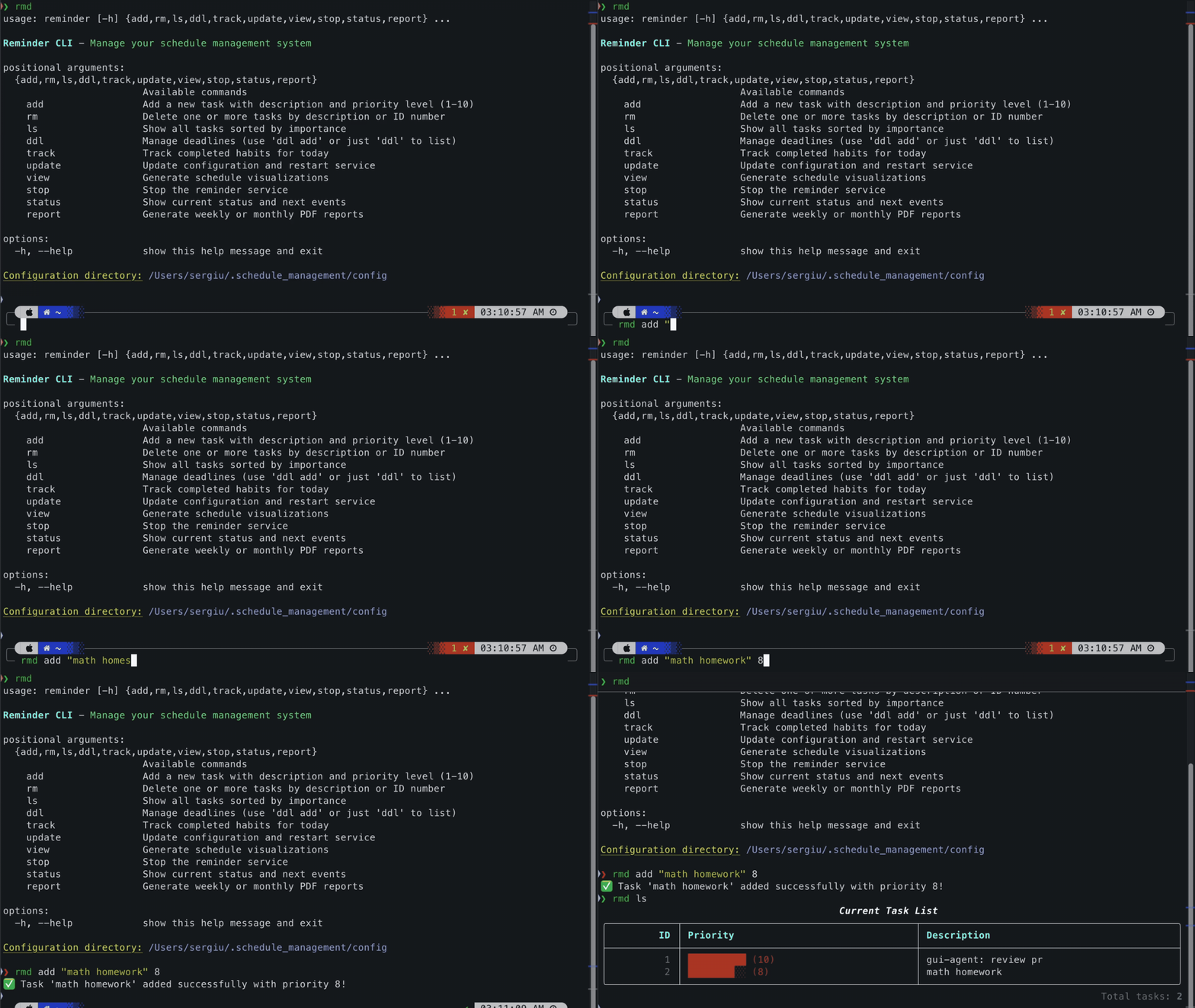
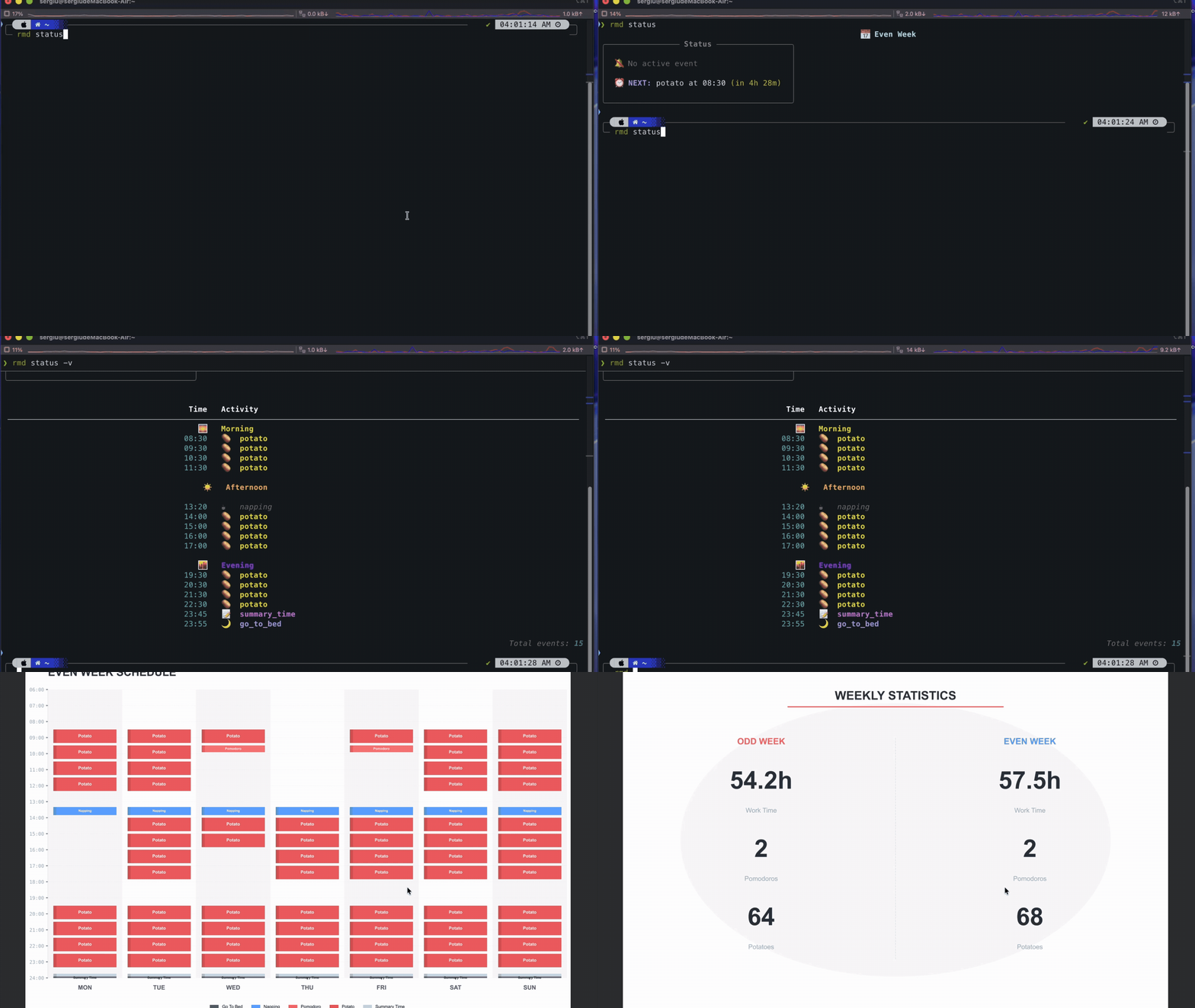
Command Categories
The CLI commands are organized into these main categories:
Schedule Management
Commands for managing your schedule and service:
rmd update- Reload config and restart servicermd switch- Change the activeuser_config_nsnapshot and reload the servicermd check- Validate a config directory (the active one by default)rmd sync- Show today's pomodoro/potato plan; print today's context as JSON for AI agents, save a plan, or clear itrmd view- Generate schedule visualizationrmd status- Show upcoming events, including planned task titles when presentrmd stop- Stop the alarm servicermd mode [j|p]- Show or switch between J mode and P modermd web- Open the browser workspace
Building a schedule and planning a day with AI happen in your own coding agent. See AI agent plugins.
Task Management
Commands for managing your task list:
rmd add- Add or update tasksrmd rm- Remove tasksrmd ls- List all tasksrmd history- Show recent completed task activitiesrmd suggest- List, add, or withdraw tasks suggested by an AI agent
Deadline Management
Commands for managing event deadlines:
rmd ddl add- Add or update deadlinesrmd ddl rm- Remove deadlinesrmd ddl- List all deadlines with urgency status
Habits
Commands for tracking daily habits:
rmd track [ids...]- Log completed habits for today (opens a prompt if no IDs given)
Reports
Commands for generating productivity reports:
rmd report <type>- Generate weekly or monthly PDF reports
System Commands
rmd settings- Interactive TUI for editingsettings.tomlwith contextual actions (↑/↓ to move, Enter to open/apply, Esc to back/cancel, Space to toggle,sto save,qto quit)rmd edit <file>- Open configuration files (settings,odd,even,deadlines,habits) in your default editorrmd --help- Show help information
Configuration Directory
By default, the CLI looks for its config root in:
~/.schedule_management/config/(macOS/Linux)
Inside that root, schedule files live under versioned user_config_n
directories and shared task data stays under tasks/.
You can override this by setting the REMINDER_CONFIG_DIR environment variable.
Error Handling
The CLI provides clear error messages for common issues:
# Configuration file not found
Error: settings.toml not found in /Users/username/.schedule_management/config/

# Invalid TOML syntax
Error: Invalid TOML syntax in odd_weeks.toml: Expected '=' at line 5

# Service not running
Warning: Schedule management service is not running. Run 'rmd update' to start it.
Exit Codes
The CLI returns standard exit codes:
0- Success1- General error2- Configuration error3- Service error
Examples
Basic Usage
# Check service status
rmd status

# Add a high-priority task
rmd add "Complete project proposal" 9

# Show today's focus blocks and their planned tasks
rmd sync

# Validate the active configuration
rmd check

# View your schedule
rmd view

# Stop the service
rmd stop
Advanced Usage
# Update with custom config directory
REMINDER_CONFIG_DIR=/custom/path/config rmd update

# Switch to config snapshot 2 under a custom config root
REMINDER_CONFIG_DIR=/custom/path/config rmd switch 2

# List tasks with verbose output (if supported)
rmd status -v

# Remove multiple tasks
rmd rm "Task 1" "Task 2" "Task 3"
Integration with Other Tools
The CLI can be integrated with other tools and scripts:
# Use in shell scripts
#!/bin/bash
if rmd status | grep -q "No upcoming events"; then
    echo "Schedule is clear"
fi

# Pipe to other commands
rmd ls | grep "urgent" | wc -l

# Use with cron for automated tasks
0 9 * * * /Users/username/SCHEDULE_MANAGEMENT/rmd status >> ~/schedule.log
Troubleshooting CLI Issues
Command Not Found
If you get command not found: rmd:
- Check that the installation completed successfully
- Verify the PATH includes the installation directory
- Ensure your shell profile is sourced
Permission Denied
If you get Permission denied errors:
chmod +x ~/SCHEDULE_MANAGEMENT/rmd
Configuration Errors
If commands fail with configuration errors:
- Run
rmd checkto see missing files, TOML syntax errors, unknown blocks, and likely label typos - Ensure file permissions are correct
Next Steps
- Learn about Schedule Management Commands
- Explore Task Management Commands and Deadline Management Commands
- See Configuration and Settings for detailed syntax
Browser workspace
Run rmd web to manage the same local data through the browser. The task board
groups all tasks by type and retains importance and reminder details. Existing
CLI syntax and task numbering are unchanged. See Browser workspace.